
In today’s digital world, online streaming has become an integral part of our daily lives. This trend is dramatically increasing day by day among website owners and so on. If you’re a website owner looking to provide your audience with live audio content, Live365 is an excellent platform to consider.
However, many website owners may be unsure of how to add a Live365 stream to their WordPress site. In this guide, we’ll walk you through the step-by-step process of integrating Live365 stream into your WordPress website. Whether you’re a radio station owner, podcaster, or someone looking to add music to your site, this guide will provide you with all the information you need to get started.
Before going on to the main process I want to inform you we are going to use a plugin called Radio Player to successfully play the Live365 stream directly from your website. So further wasting your time let’s get started.

Table of Contents
What is Live365 Stream?
Live365 Stream is an online platform that allows users to create and broadcast their own internet radio stations. It provides tools for streaming music, talk shows, and live content to listeners around the world without needing a complex technical setup.
Live365 also handles licensing, royalties, and compliance with music copyright laws, making it easy for broadcasters to focus on content. The platform offers features like customizable station pages, analytics, and monetization options for a professional online radio experience.
Why Play Live365 Stream on a WordPress Website?
Playing your Live365 stream on a WordPress website helps you reach more listeners and deliver professional radio directly through your site.
Here are the key reasons to stream Live365 on WordPress:
- Wider audience – Let site visitors listen without leaving your page.
- Professional streaming – Use a licensed, reliable radio platform.
- Easy integration – Add your stream using a simple embed or player.
- Live content – Keep your website fresh and engaging 24/7.
- Works on all devices – Mobile, tablet, and desktop compatible.
- Boost listener time – Increase time spent on your site.
Adding Live365 to WordPress enhances your radio presence and delivers a smooth listening experience for your audience.
How Do I Play Live365 Stream on WordPress Website?
If you are looking to play any Live365 stream on your WordPress website just follow the simple steps below:
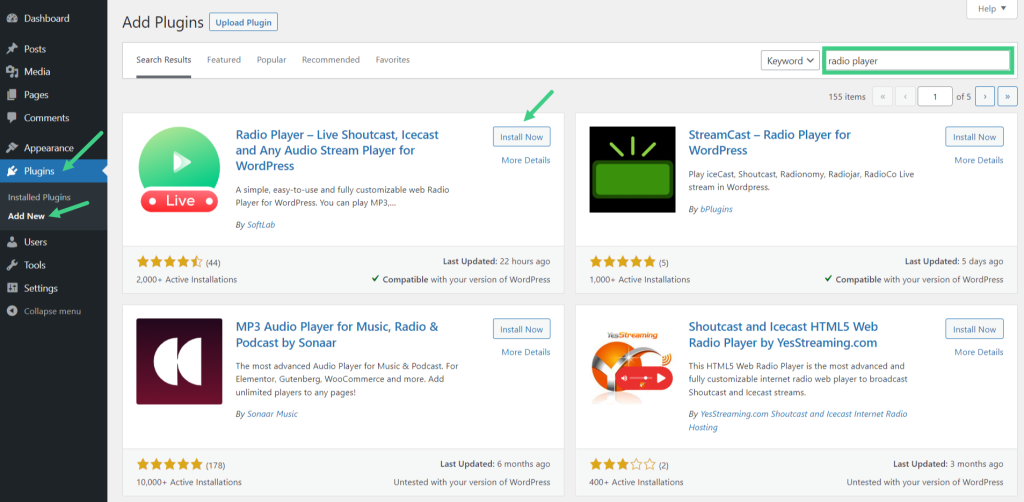
Step-1: Install & Activate Radio Player Plugin
Go to your WordPress dashboard.
- Navigate to Plugins
- Click Add New.
- In the search bar, type Radio Player.
- Click Install Now.
- After installation, click Activate.
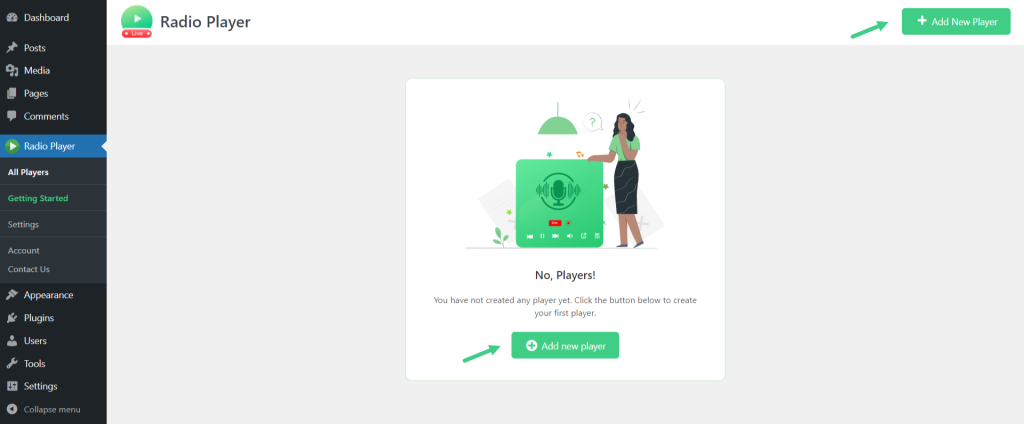
Step-2: Add New Player
Navigate to Radio Player > Add New Player.
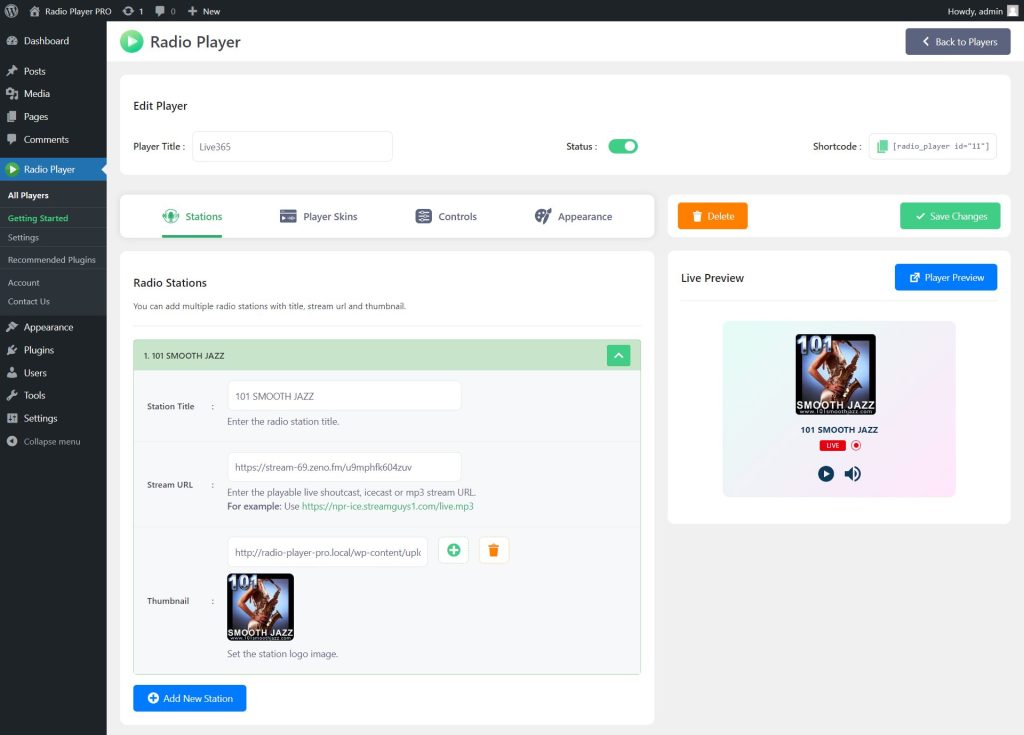
Enter the player title, station title, stream URL, and station thumbnail > Save Changes.
Step-3: Enter Live365 Stream URL
To successfully stream Live365 inside any of your pages or post you have to enter a working Live365 stream URL in the Stream URL section. For example, I am entering this URL as Live365 Stream URL: https://ais-edge101-live365-dal02.cdnstream.com/a55660 > Save Changes.
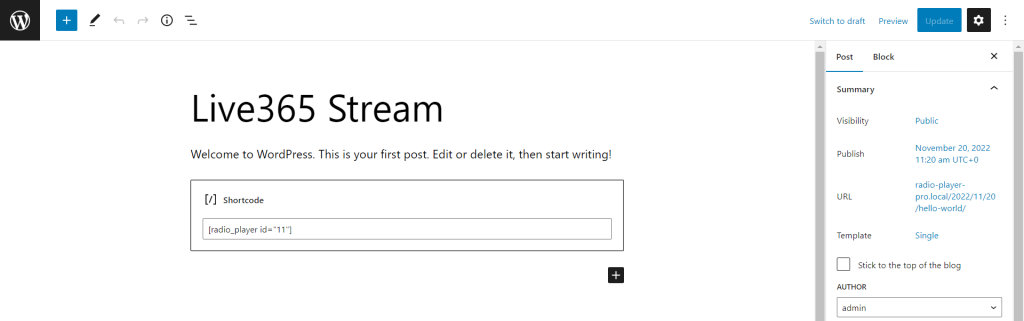
Step-4: Display/ Embed Live365 Stream
As I mentioned in the previous step you can display/ embed Live365 stream inside any of your pages/posts by using the shortcode generated while creating a new player. Copy the shortcode and Paste where you want to display/ embed the Live365 radio stream.
FAQ & Answers
Here are the most commonly asked questions related to streaming Live365 directly on your WordPress website.
Why should I add a Live365 stream to my WordPress website?
Adding Live365 stream to your WordPress website is an easy and effective way to provide your audience with high-quality live audio content. It can help to engage your audience and keep them longer on your website with non-stop entertainment.
Is it difficult to integrate Live365 stream into my WordPress website?
No, it is not difficult to integrate Live365 stream into your WordPress website if you use Radio Player plugin by SoftLab. By following the steps outlined in this guide, you can easily add a Live365 stream to your site in just a few simple steps.
Will adding a Live365 stream to my WordPress website slow down my site’s performance?
No, adding a Live365 stream to your WordPress website should not significantly impact your site’s performance. Live365 provides a high-quality streaming service that is optimized for fast loading times and minimal impact on website performance.
Can I use Live365 to monetize my audio content on my WordPress website?
Yes, Live365 provides several monetization options that you can use to generate revenue from your audio content on your WordPress website. These options include advertising, sponsorships, and subscriptions.
Can I embed the Live365 stream on multiple pages of my WordPress website?
Yes, you can embed Live365 stream on multiple pages of your WordPress website. Simply copy and paste the embed code into each page where you want the player to appear.
Video Tutorial
Conclusion
Adding Live365 stream to your WordPress website is an easy and effective way to provide your audience with high-quality live audio content. By following the steps outlined in this guide, you’ll be able to seamlessly integrate Live365 into your website.
So, don’t hesitate to give it a try! Follow the steps outlined in this guide and start enjoying the benefits of Live365 stream on your WordPress website today. This will be useful if you are a radio station owner, podcaster, or someone looking to add live music to your WordPress website.
No Comments yet!
Leave a reply