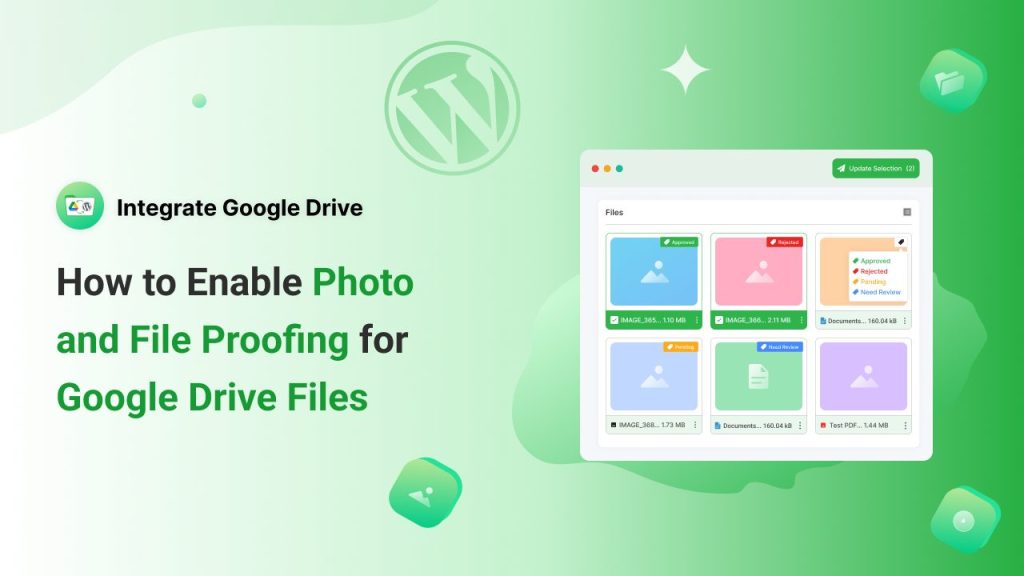
Before a file is finalized or shared publicly, it often passes through multiple rounds of review, comments, edits, clarifications, and approvals. When feedback is scattered across emails or directly on the WordPress dashboard, important details can be missed, and revisions can take longer than necessary.
Integrate Google Drive offers built-in tools that help centralize this feedback by enabling photo and file proofing directly within your files. By activating and using these proofing features, teams can review visual and non-visual content more efficiently, keep conversations tied to specific elements, and move projects forward with greater confidence.
In this article, we’ll explore how to use Photo and File Proofing for Google Drive files directly from the WordPress platform, making it easier to review, comment on, and approve content without leaving your website.
Table of Contents
What Does Photo Proofing Mean?
Photo proofing refers to the process of reviewing, annotating, and approving images before they are finalized or published. It allows collaborators such as designers, photographers, clients, or content editors to leave precise feedback directly on specific areas of an image, rather than providing general comments separately.
Through photo proofing, reviewers can mark up images, add comments, suggest changes, and track revisions in one centralized place. This streamlined approach reduces misunderstandings, speeds up approval cycles, and ensures that visual content meets quality and branding standards before it goes live.
What Does File Proofing Mean?
File proofing is the process of reviewing, commenting on, and approving files such as documents, PDFs, presentations, or spreadsheets before they are finalized or shared. It enables collaborators to provide clear, contextual feedback directly within the file, ensuring that suggestions, corrections, and approvals are easy to track and address.
By centralizing feedback and revision history, file proofing helps teams avoid version confusion, reduce back-and-forth communication, and maintain accuracy and consistency throughout the review process.
How Does Photo & File Proofing Work?
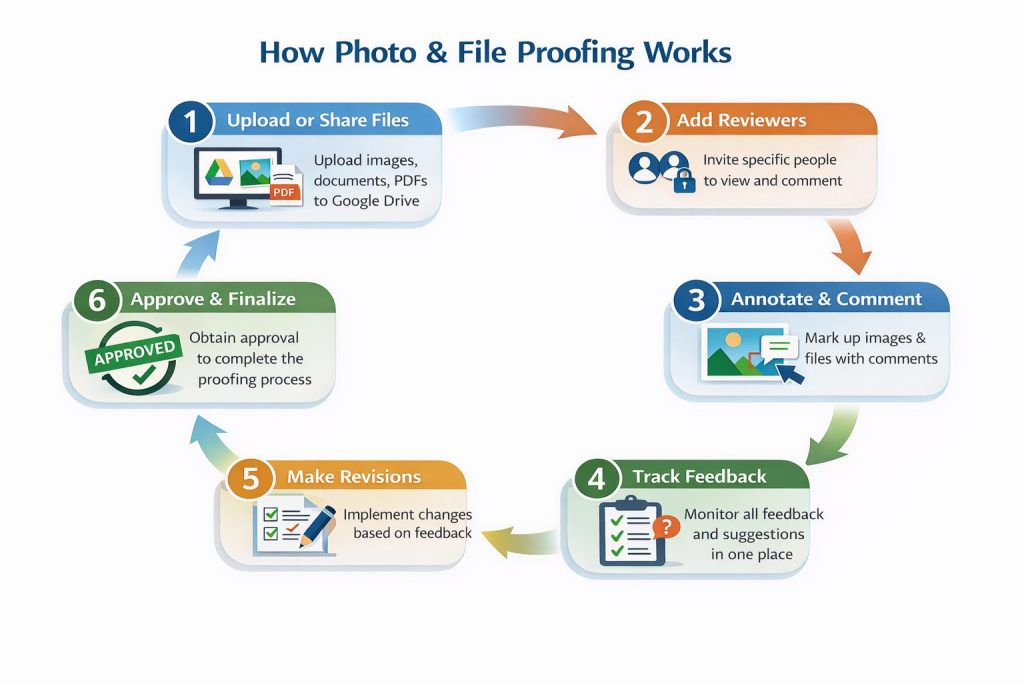
Photo and file proofing streamlines the review and approval process by allowing collaborators to interact directly with content in a centralized environment. Here’s how it generally works:
- Upload or Share Files – Images, documents, PDFs, or other files are uploaded to Google Drive and shared with team members or clients who need to review them.
- Add Reviewers – Specific people are given access to view and comment on the file. Permissions can often be set to allow viewing only, commenting, or full editing.
- Annotate and Comment – Reviewers can leave comments directly on specific parts of an image or sections of a document. For photos, this might include drawing shapes, highlighting areas, or adding text notes. For documents, comments can be tied to paragraphs, lines, or even individual words.
- Track Feedback – All comments and annotations are collected in one place, making it easy to see suggestions, questions, and approvals without hunting through emails or directly from WordPress platform.
- Make Revisions – The file owner or editor can implement changes based on the feedback, ensuring that each revision aligns with reviewers’ input.
- Approve and Finalize – Once all comments are addressed, reviewers can mark the file or image as approved, completing the proofing process.
This workflow not only saves time but also reduces miscommunication, keeps everyone on the same page, and ensures higher-quality output.
Benefits of Using Photo & File Proofing
Reviewing files and images can get messy when feedback is scattered across emails or directly on the WordPress dashboard. Photo and file proofing keeps everything in one place, letting teams comment, annotate, and approve Google Drive content directly from the WordPress platform.
Here are a few unmatched benefits of using Photo & File Proofing:
- Centralized Feedback – All comments and suggestions are collected in one place, eliminating the need to track feedback across emails, chats, or multiple file versions.
- Clear Communication – Reviewers can leave precise annotations on images or highlight specific sections in documents, reducing misunderstandings and misinterpretations.
- Faster Approvals – Streamlined feedback and revision tracking help speed up the approval process, ensuring projects move forward without unnecessary delays.
- Version Control – Proofing keeps track of changes and revisions, so everyone works with the latest file, and previous versions are preserved for reference.
- Improved Collaboration – Multiple team members or clients can review files simultaneously, provide feedback, and resolve issues together in real time.
- Higher-Quality Output – By catching errors, inconsistencies, or design issues early, proofing helps ensure that the final files meet quality standards and expectations.
- Accountability and Transparency – Feedback and approvals are tied to specific reviewers, making the process more organized and transparent.
Install Useful Plugins
Before moving on to the main steps, you have to prepare by installing the necessary plugin inside your WordPress website. Follow the steps below to know the process clearly.
- Log in to your WordPress Dashboard.
- Navigate to Plugins → Add New.
- Search for Integrate Google Drive.
- Click Install, then Activate the plugin.
- Ensure you have the Premium version of Integrate Google Drive, as it is required to enable photo and file proofing features.
How to Enable Photo Proofing?
Photo proofing allows you to collect visual feedback directly on images, making reviews faster and more accurate. Follow the steps below to enable photo proofing and start collaborating on images within your workflow.
- Navigate to Google Drive
- Go to Module Builder
- Click Add New Module
- Select Gallery
- Choose the preferred images for photo proofing
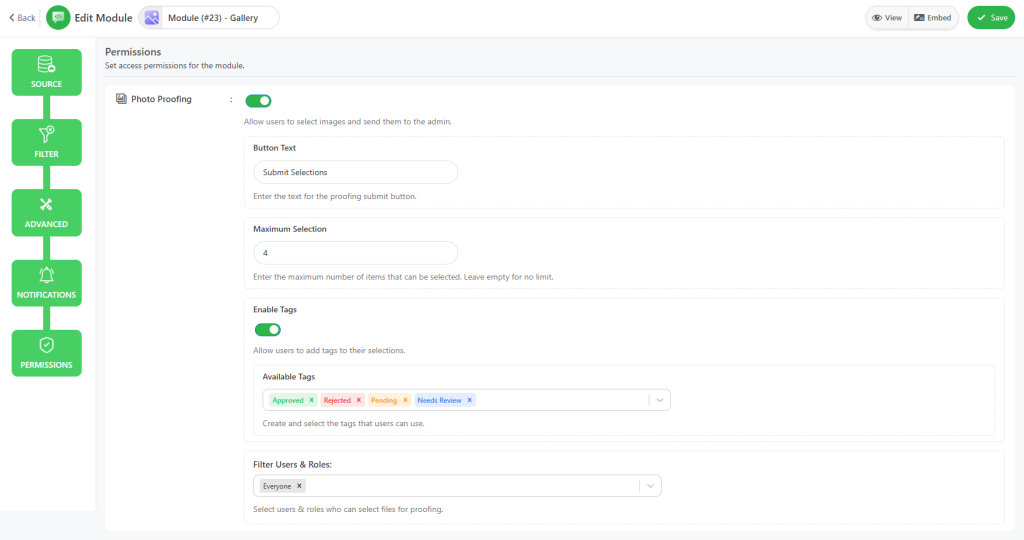
- Navigate to the Permissions tab
- Enable Photo Proofing
How to Enable File Proofing?
File proofing helps streamline the review and approval process for documents by keeping all feedback in one place. Follow the steps below to enable file proofing and collaborate more effectively on your files.
- Navigate to Google Drive
- Go to Module Builder
- Click Add New Module
- Select Review & Approve
- Choose the preferred files for file proofing
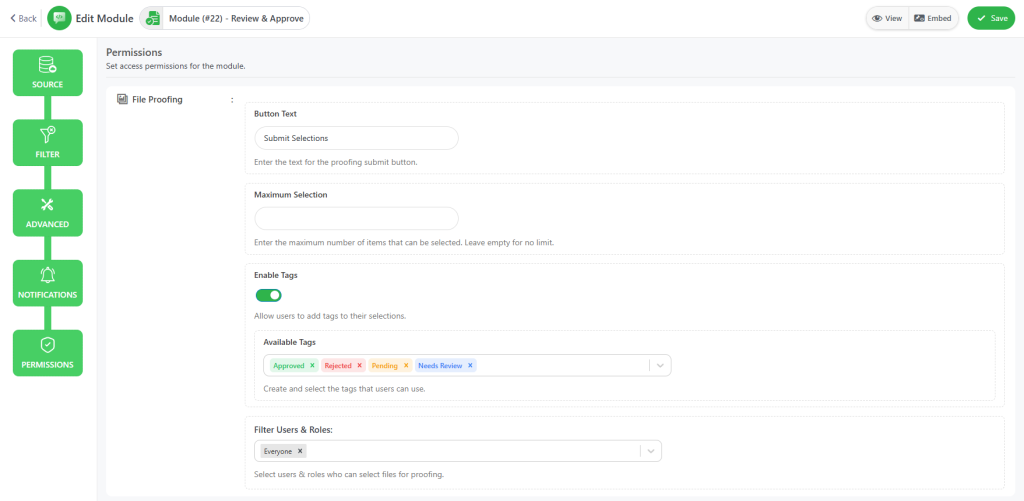
- Navigate to the Permissions tab
- Move on to File Proofing settings
Display Modules
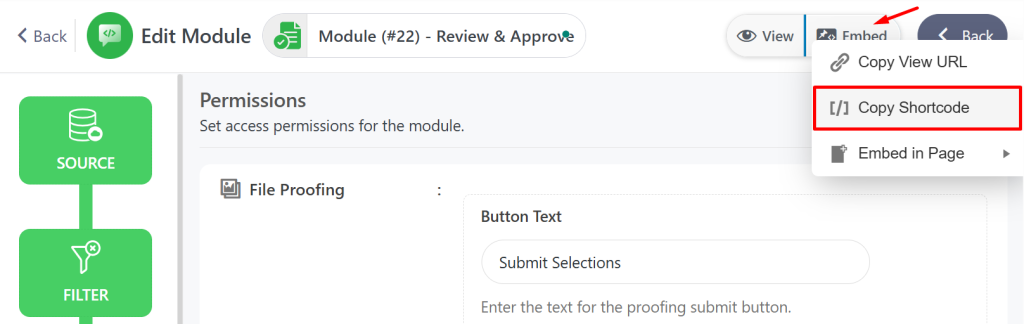
To display any of the modules, follow the steps below:
- Click on the Embed button
- Copy Shortcode
- Paste it inside any page or post.
Users can now participate in photo or file proofing to submit their thoughts.
Review Proofing Submission
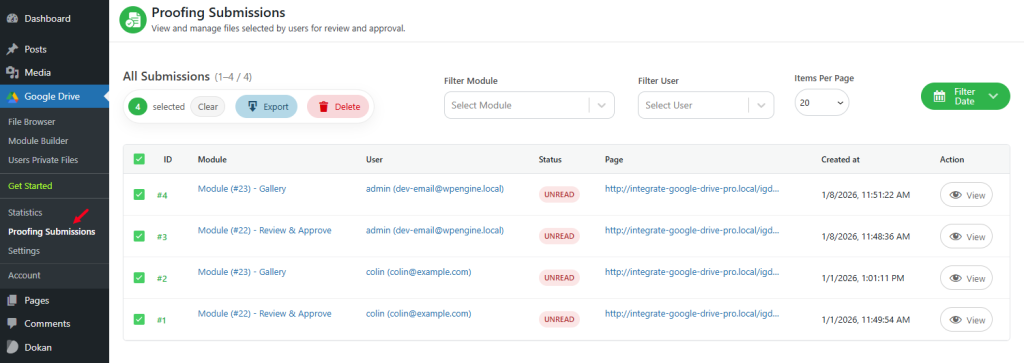
After users submit their review, admins can check the reviews for approval fromthe Proofing Submission menu. Follow the steps below to understand how the process works.
- Navigate to Google Drive
- Proofing Submissions
Here you can view a list of proofing submissions submitted by users for review and approval. You can export submissions in bulk by selecting multiple records, delete bulk data, filter by module, user, or date, and review individual submissions with complete details, along with other management options.
Conclusion
Photo and file proofing simplifies the way teams review, comment on, and approve content by keeping all feedback centralized and easy to manage.
By enabling these features for Google Drive files directly from your WordPress platform, you can reduce miscommunication, speed up approvals, and ensure higher-quality outcomes.
Whether you’re working with images or documents, proofing helps create a smoother, more efficient collaboration workflow from start to finish.