Install FREE Version
To install the FREE version of the Multimedia Player plugin follow the below steps:
- Navigate to your WordPress dashboard > Plugins > Add New.
- In the search bar, type Multimedia Player.
- Click on the Install & Activate button.
- Allow necessary permissions if asked.
Install PRO Version
You can upgrade the Multimedia Player plugin directly from your WordPress dashboard. Make sure the FREE version plugin is installed inside your website.
To install the PRO version follow the below guideline:
Upgrade the Plugin
- Navigate to the Multimedia Player from the WordPress sidebar
- Click the Upgrade option.
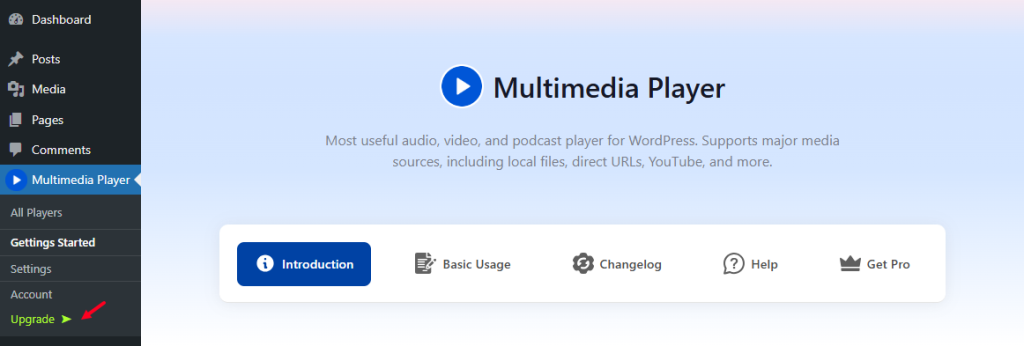
Else,
- Navigate to Plugins > Installed Plugins.
- Click the Upgrade option below the Multimedia Player plugin.
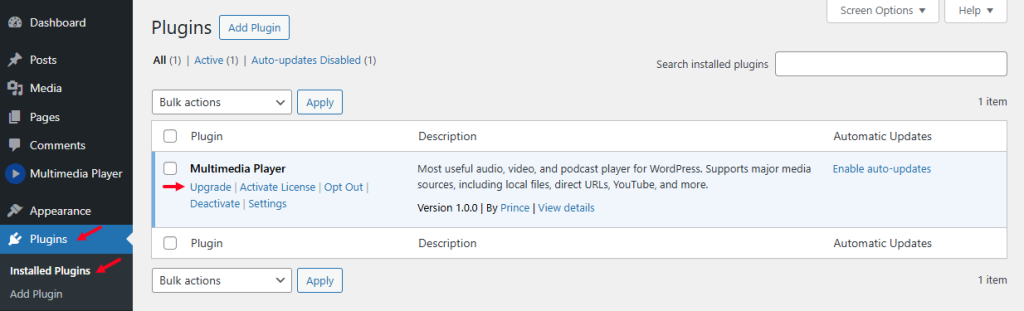
Selecting Plans & Pricing
- Once you click, you will be redirected to the plans & pricing page.
- Choose your plans according to your need and click Upgrade Now.
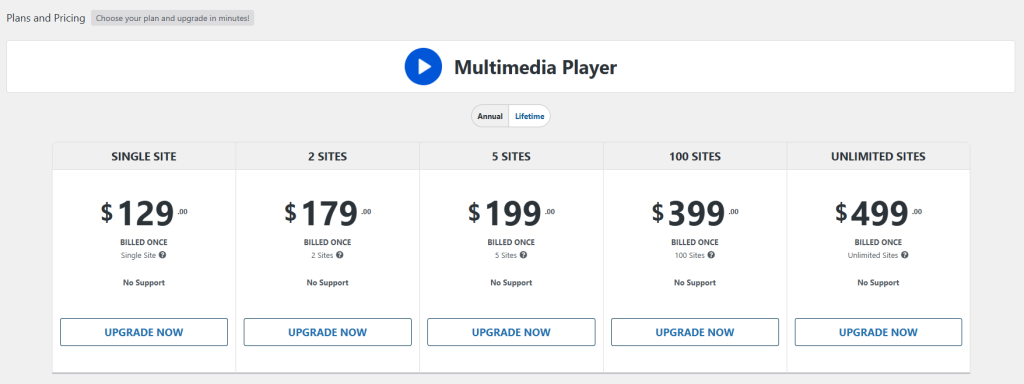
Enter Billing Details
- Choose your billing method (card or PayPal).
- Fill up your billing details (card number, expiration date, security code, postcode, and country).
- Click on the Review Order button.
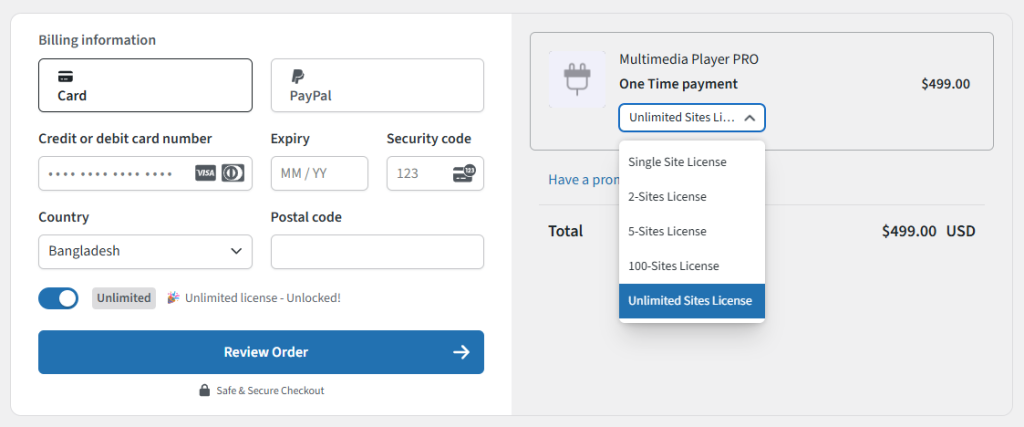
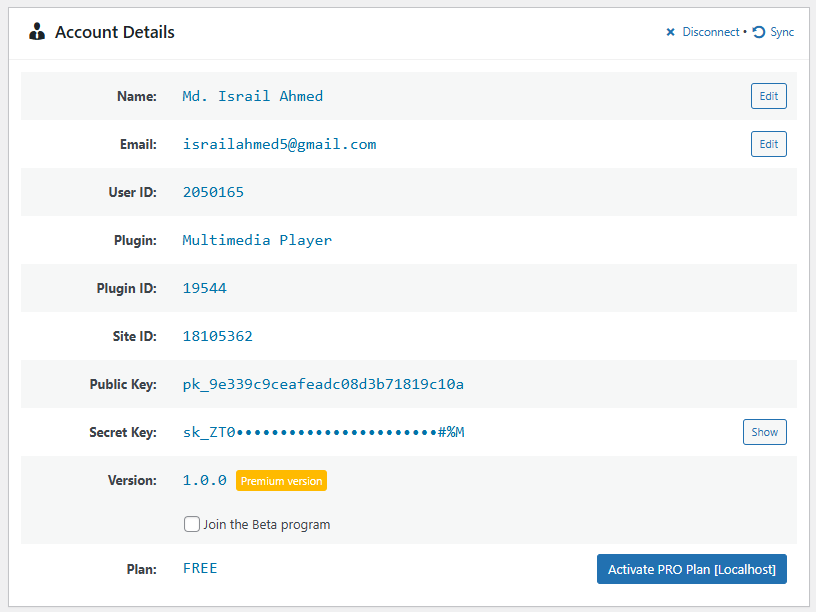
Accounts Details Page
- Now you will be redirected to the Account Details Page where you can check your all pieces of information.
Email Confirmation
- Once you have completed the billing process, check your email inbox for a confirmation email along with the PRO Version download link, License Key, and other confidential information.
- Download the Multimedia Player PRO Version and Install it by uploading the file in your WordPress Plugins uploading section.

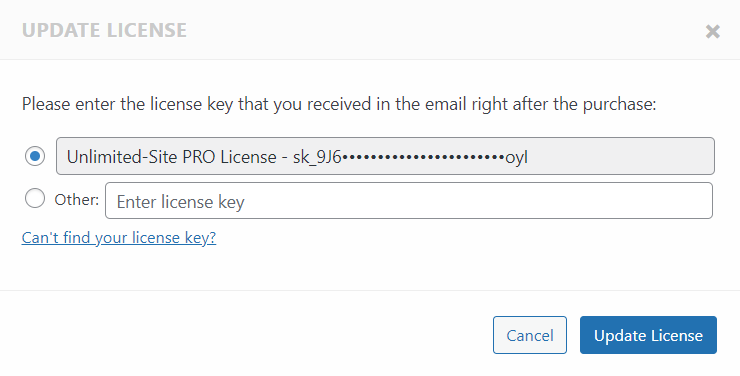
Activate PRO License
- Copy the License Key from the email you got.
- Click Activate License from the WordPress Plugin section.
- Paste the License Key.
- Click Agree & Active License.
Now you are all set to play with the Multimedia Player PRO plugin and unlock its premium features.