Radio Player has become an essential feature for many websites, allowing seamless streaming of live radio stations and audio content, enhancing user engagement, and providing continuous playback across pages.
However, when using Radio Player with caching plugins, users may encounter compatibility issues that can affect smooth playback, player visibility, or the proper functioning of sticky and popup player modes.
Here are the most common reasons for Radio Player compatibility issues:
- JS Minification
- JS Combine
- Load JS Deferred
You can fix compatibility issues by disabling those options (JS Minification, JS Combine, and Load JS Deferred) or excluding scripts. Below we describe both options:
- Disable JS: Simply navigate to your preferred cache plugin and disable JS Minification, JS Combine, or Load JS Deferred. This will successfully fix Radio Player compatibility issues.
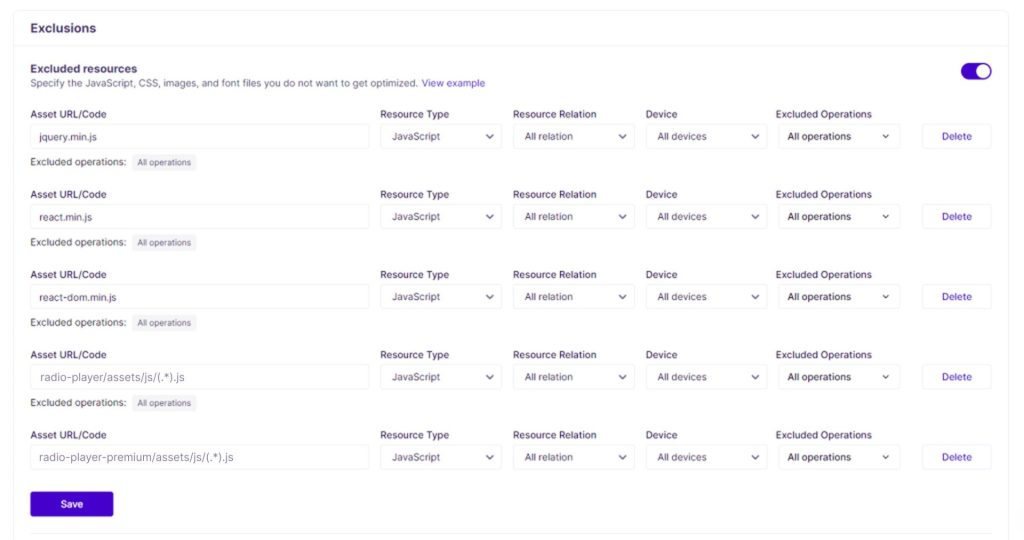
- Exclude Scripts: If you don’t want to disable those options, you have to exclude scripts to fix compatibility issues. Navigate to preferred cache plugin > Settings > Exclude Settings > Paste the below scripts.
jquery.js

jquery.min.js

radio-player/assets/js/(.*).js

radio-player-premium/assets/js/(.*).js

If you are using caching plugins like LiteSpeed Cache, WP Rocket, and others, you might encounter such issues. Follow the guidelines below to fix such compatibility issues:
LiteSpeed Cache
LiteSpeed Cache for WordPress (LSCWP) stands out as the ultimate solution for your site’s speed and performance. This comprehensive plugin boasts an exclusive server-level cache, coupled with a suite of optimization features that collectively redefine and amplify your website’s acceleration capabilities.
If you are facing Radio Player compatibility issues while using the LiteSpeed Cache plugin, you should follow the guidelines below:
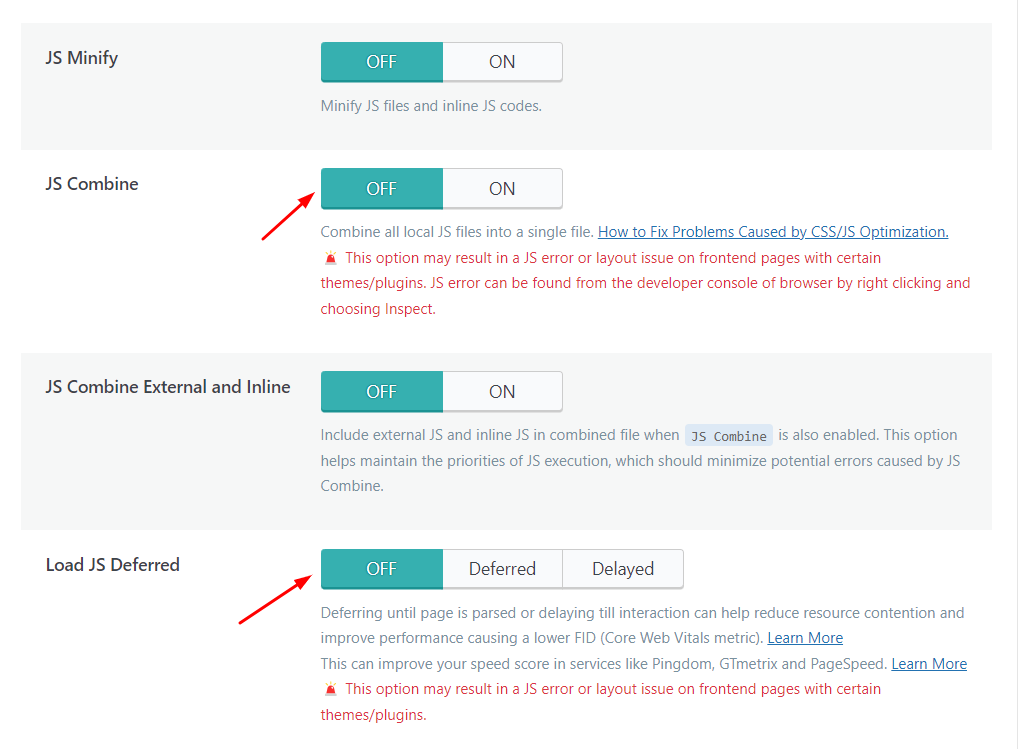
Navigate to LiteSpeed Cache > Page Optimization > JS Settings > Disable JS Combine, and Load JS Deferred > Save Changes.
W3 Total Cache
W3 Total Cache (W3TC) boosts your site’s SEO, enhances Core Web Vitals, and improves user experience. It achieves this by optimizing website performance, slashing load times, and incorporating features such as content delivery network (CDN) integration, adhering to the latest best practices.
If you are facing Radio Player compatibility issues while using the W3 Total Cache plugin, you should follow the guidelines below:
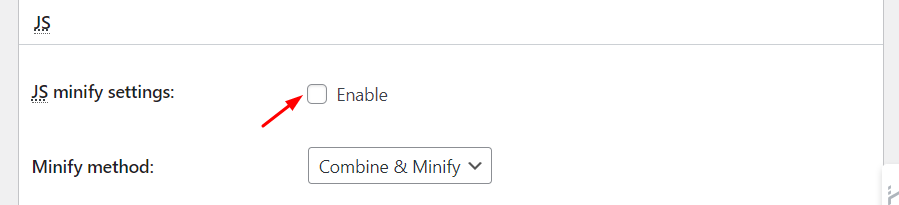
Navigate to W3 Total Cache (Performance) > Minify > Disable HTML Minify Settings, and JS Minify Settings > Save Changes.
WP Rocket
WP Rocket is the most trending WordPress caching plugin, offering a robust solution that goes beyond mere caching. It is the ultimate tool to elevate your website’s loading speed, enhance your PageSpeed performance score, and meticulously optimize your Core Web Vitals.
If you are facing Radio Player compatibility issues while using the WP Fastest Cache plugin, you should follow the guidelines below:
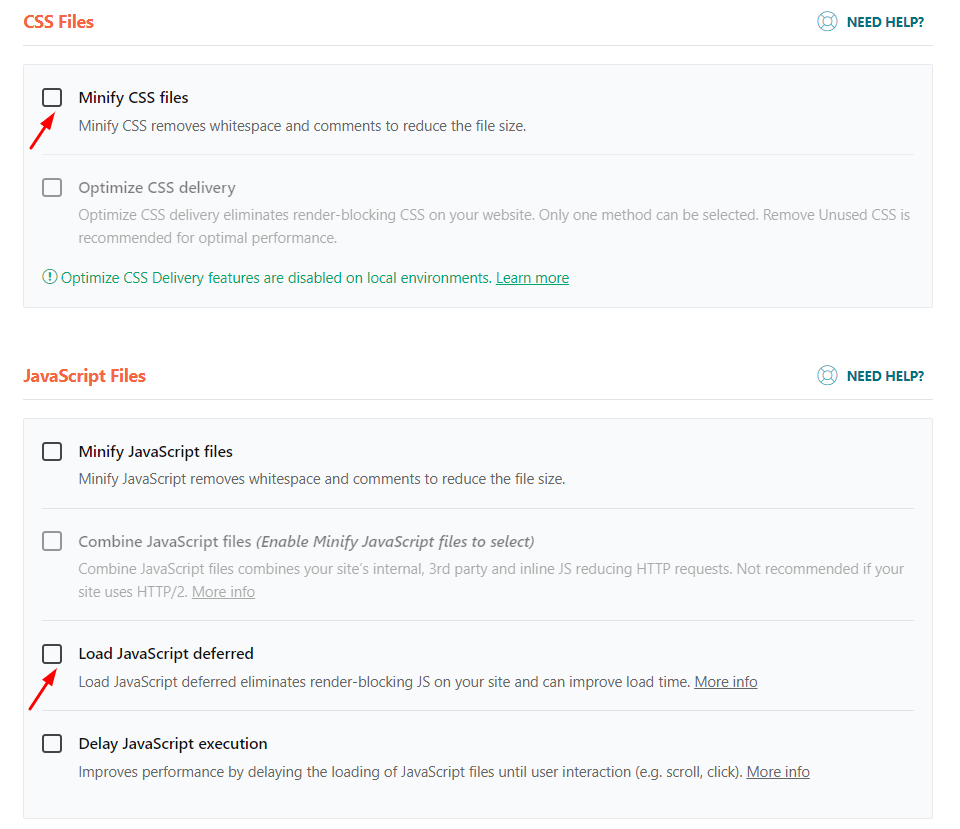
Navigate to Settings > WP Rocket > Disable Minify Javascript Files and Load JavaScript Deferred > Save Changes.
WP Fastest Cache
When a website experiences a surge in visitors, the system can strain its RAM and CPU resources, resulting in sluggish page rendering. To address this issue, implementing a cache system becomes imperative to avoid repetitive page rendering. WP Fastest Cache is the solution for fast loading, core web vitals, and many important things related to speed.
If you are facing Radio Player compatibility issues while using the WP Fastest Cache plugin, you should follow the guidelines below:
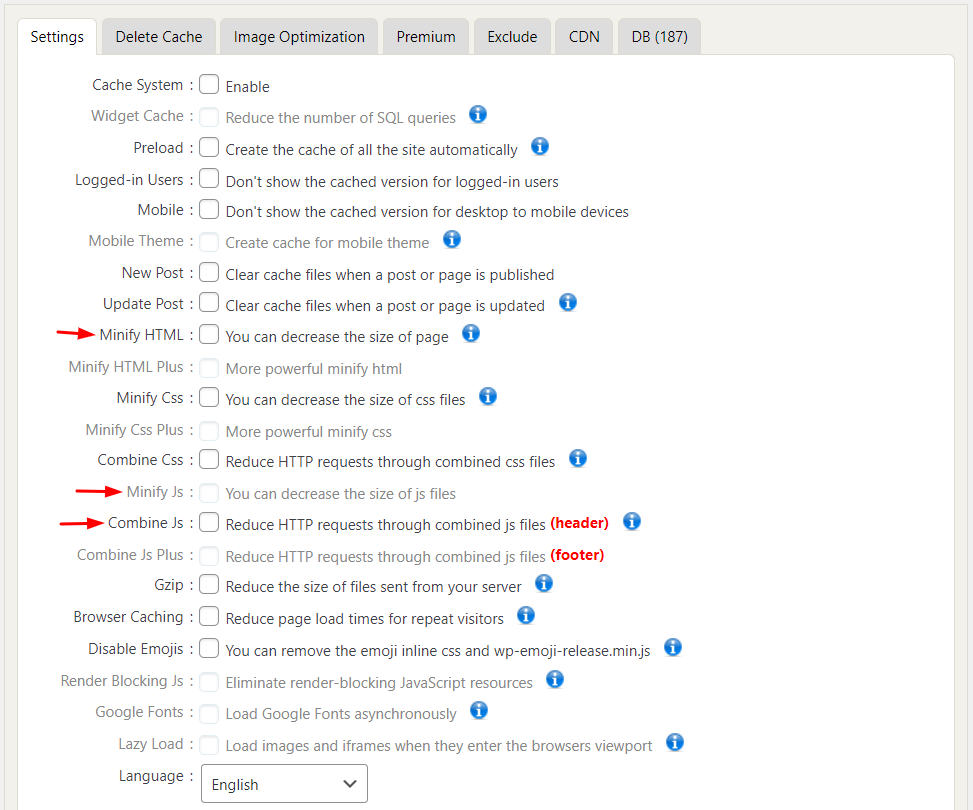
Navigate to WP Fastest Cache > Settings > Disable Minify HTML, Minify JS, and Combine JS > Save Changes.
WP-Optimize
WP-Optimize has gained the trust of over a million WordPress site proprietors for enhancing performance and minimizing page load durations, ultimately enhancing user experiences and elevating SERP rankings on Google.
If you are facing Radio Player compatibility issues while using the WP-Optimize plugin, you should follow the guidelines below:
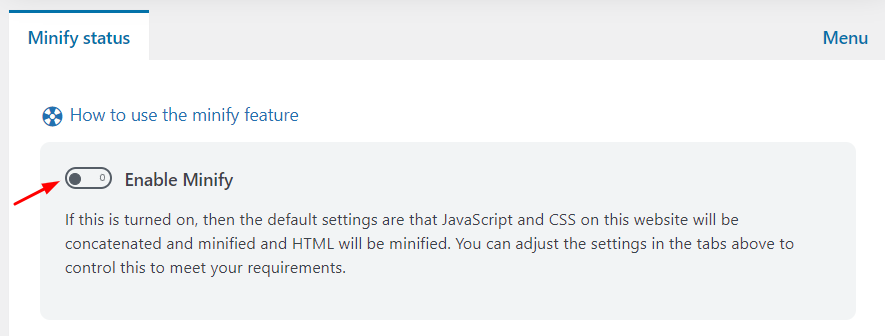
Navigate to WP-Optimize > Minify > Disable Minify Settings.
NitroPack
Transform your WordPress site’s speed with NitroPack, the ultimate caching plugin. Designed for efficiency, it uses advanced cloud technology and smart caching to ensure lightning-fast load times. Say goodbye to slow pages and hello to a seamless browsing experience that keeps visitors engaged.
Integrating NitroPack is simple. Enjoy automatic optimizations and user-friendly settings that boost performance without the technical hassle. Focus on creating great content while NitroPack takes care of your site’s speed and reliability!
If you are facing Radio Player compatibility issues while using the NitroPack plugin, you should follow the guidelines below:
Navigate to Cache Settings > JavaScript > Disable Combine JavaScript.
Navigate to Cache Settings > Cache > Enable Exclusions > Add all the Scripts one by one, those we mentioned earlier > Save Changes.
By following those steps for different cache plugins, you can easily fix Radio Player Compatibility Issues. Make sure to take each action carefully so that you don’t break your website.