Radio Ads/ Audio Ads can be a handy feature to display ads while radio stations are playing. Before that, you have to create and set up a preferred ad. Let you directly take to the step-by-step guide!
Step-1: Install & Activate Radio Player Plugin
Begin by installing and activating the radio player plugin on your WordPress site. This step sets up the core functionality, allowing you to start creating and managing your radio players.
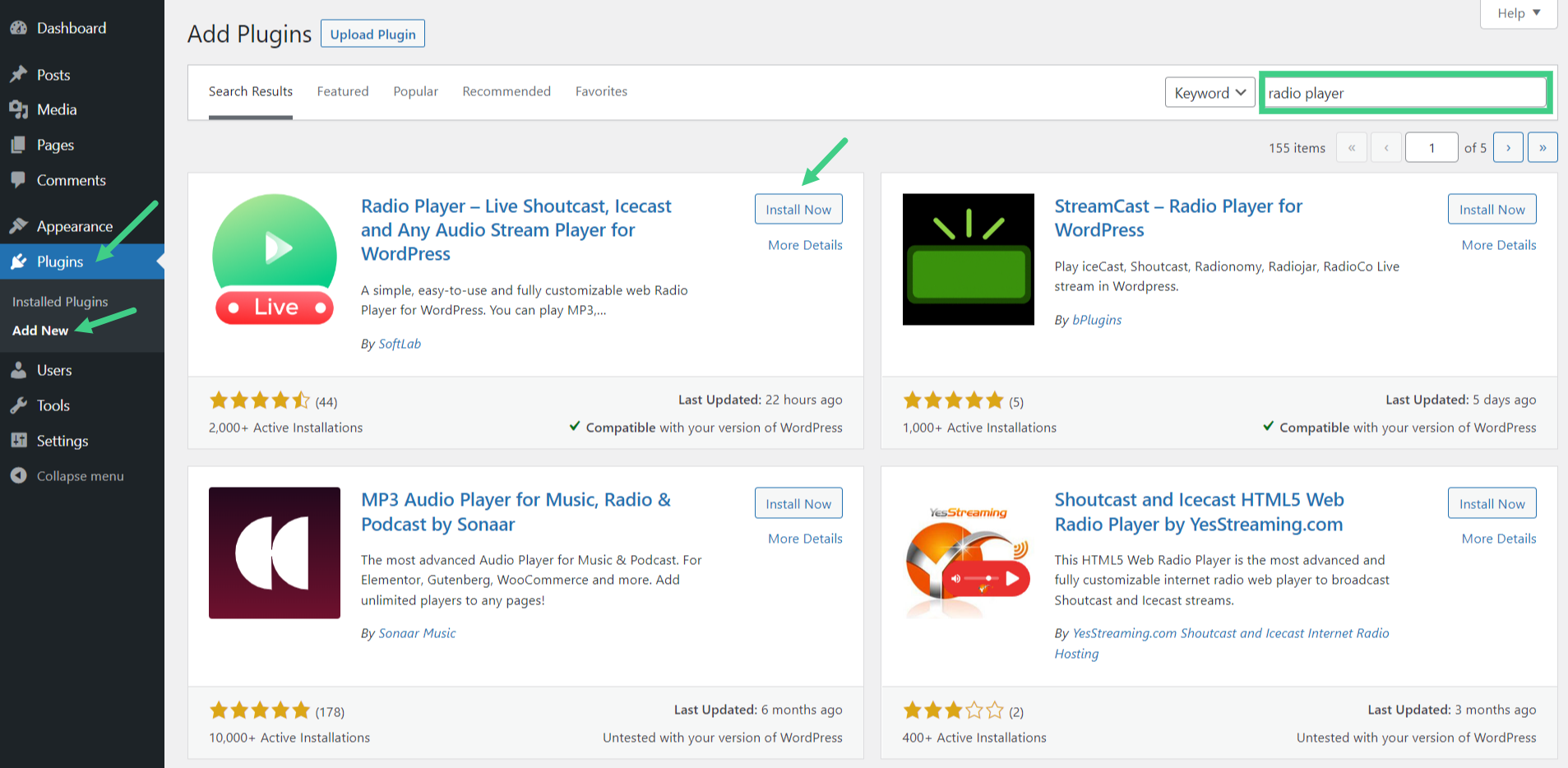
- Navigate to Plugins > Add New.
- Search for Radio Player.
- Click Install & then Activate the Radio Player plugin by SoftLab.
Step-2: Install & Activate Radio Player Ads Addon
Next, install and activate the Ads Addon to enable advertisement features in your radio player. This step allows you to manage and display ads, helping you monetize your streaming content effectively.
- To create ads, you must first add the Radio Player Ads add-on.
- Navigate to Radio Player > Radio Player Adds.
- Click View Details under Radio Player Ads.
- Click Install & Activate the add-on.
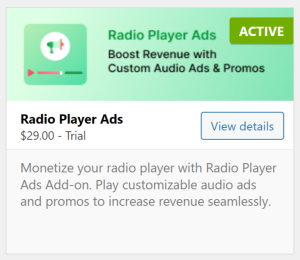
If you haven’t purchased the addon yet, you just need to purchase it to create & set up ads. Read how you can purchase the add-on.
Step-3: Create & Setup Ad
To create & set up radio ads, navigate to Radio Player Ads > Add New Ad > Enter Ad Title.
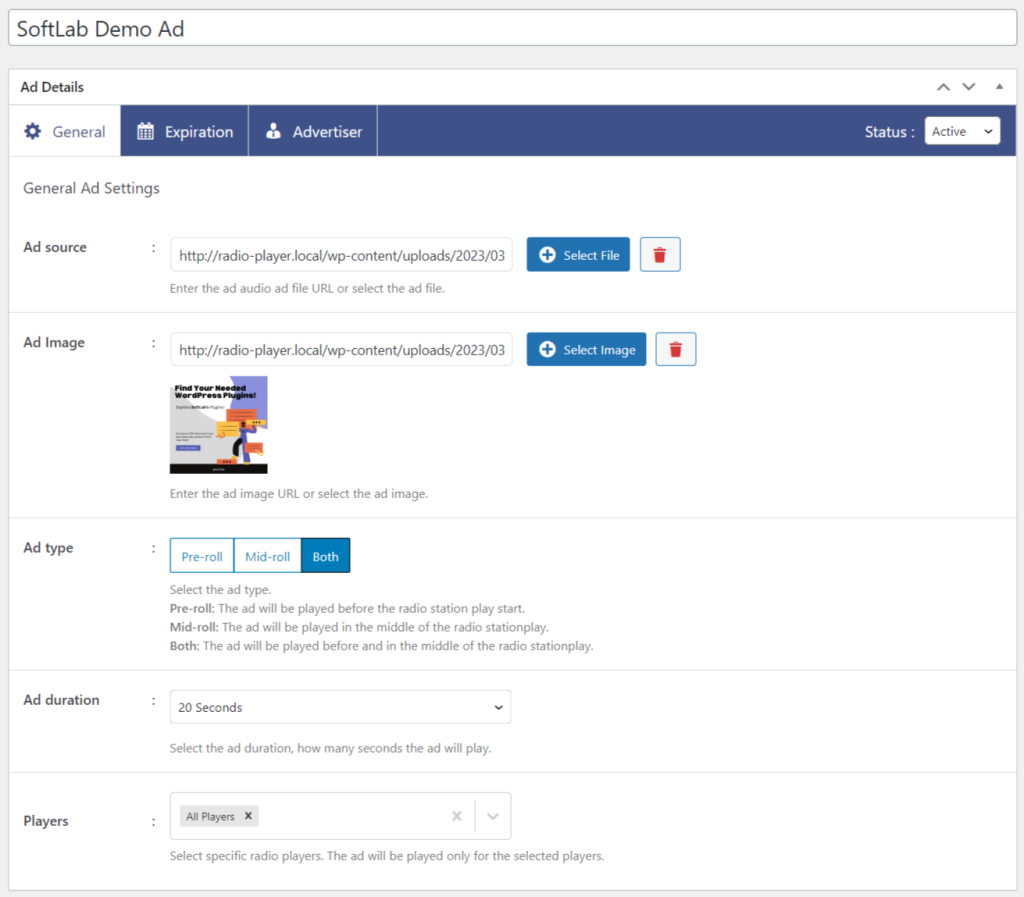
From General Tab set up general Ad settings from local storage.
- Ad Source: Enter the ad audio ad file URL or select the ad file from local storage.
- Ad Image: Enter the ad image URL or select the ad image.
- Ad Type: Select the ad type from 3 different types of ads.
– Pre-roll: The ad will be played before the radio station play start.
– Mid-roll: The ad will be played in the middle of the radio station play.
– Both: The ad will be played before and in the middle of the radio station play. - Ad Source: Enter the ad audio ad file URL or select the ad file from local storage.
- Ad Image: Enter the ad image URL or select the ad image.
- Ad Type: Select the ad type from 3 different types of ads.
– Pre-roll: The ad will be played before the radio station play start.
– Mid-roll: The ad will be played in the middle of the radio station play.
– Both: The ad will be played before and in the middle of the radio station play. - Ad Duration: Select the ad duration, and how long the ad will play. You can select 10 sec, 20 sec, 30 sec, 1 min, full length, and custom length.
- Players: Select specific radio players where you want to play ads. The ad will be played only for the selected players.
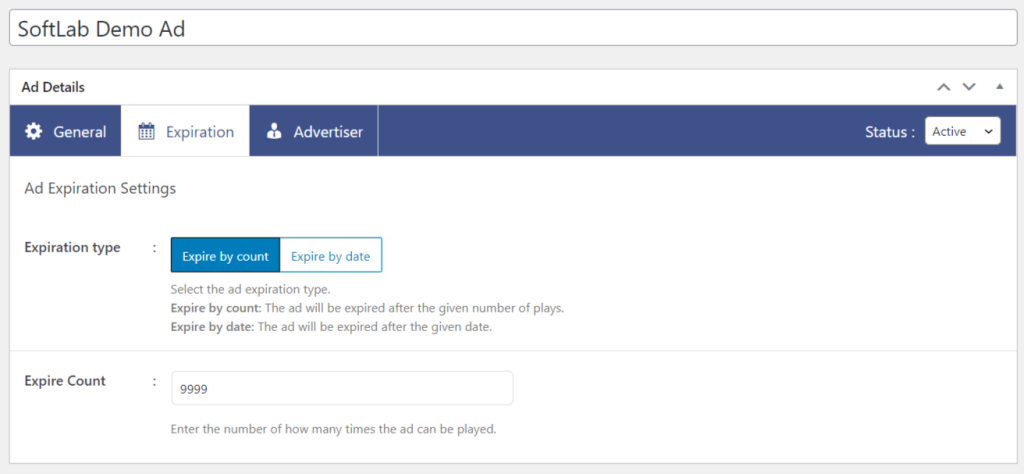
From the Expiration Tab customize ad expiration settings.
- Expiration Type: Select the ad expiration type depending on your need.
– Expire by count: The ad will expire after the given number of plays.
– Expire by date: The ad will expire after the given date.
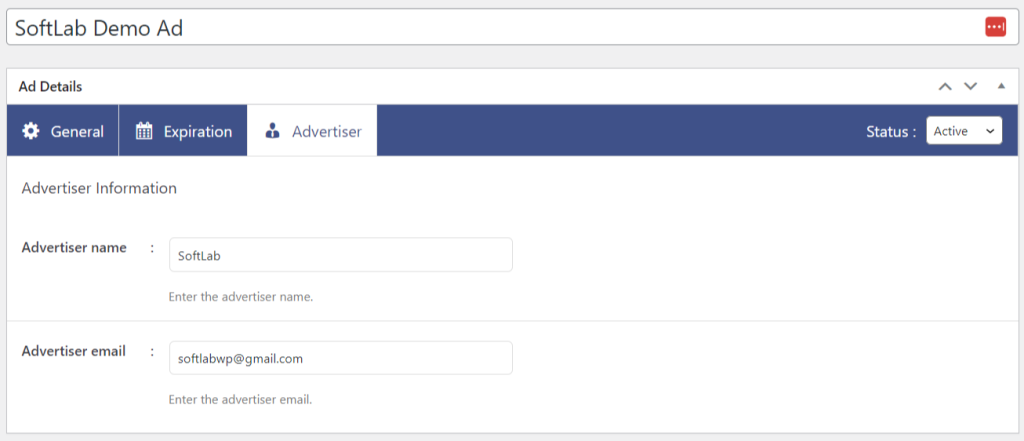
From the Advertiser Tab enter advertiser information.
- Advertiser Name: Enter the advertiser name (will be displayed while an ad is running).
- Advertiser Email: Enter the advertiser email (this email is used to send email reports of ad playing statistics)
Select the Ad Status > Click Publish when customizations are done.
When anyone plays the radio ads will keep displaying in terms of the settings you have customized.