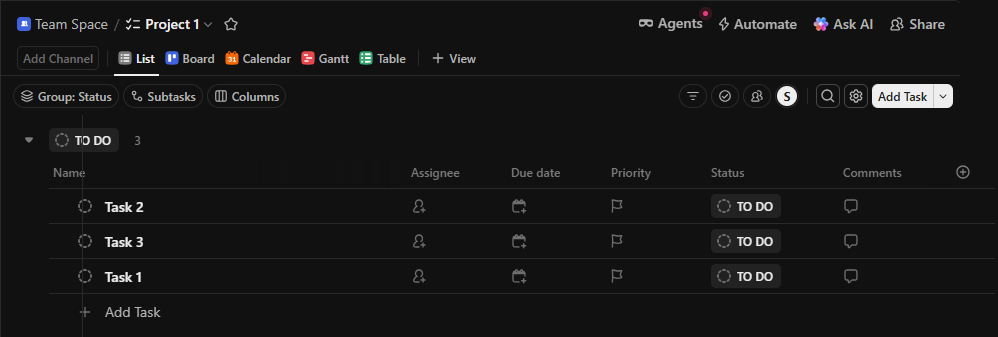
The ClickUp Integration in the Essential Addons for Contact Form 7 plugin enables you to automatically create tasks in ClickUp whenever a Contact Form 7 submission is received.
This integration helps you turn form entries—such as leads, support requests, or project details—into actionable tasks without any manual effort.
By connecting Contact Form 7 with ClickUp, you can centralize your workflow, improve task tracking, and ensure that no submission is missed.
The integration allows you to map form fields to ClickUp task fields, assign tasks to specific spaces, folders, or lists, and keep your team aligned with real-time updates.
Before you start: Make sure Contact Form 7 and Essential Addons for Contact Form 7 (PRO) are installed on your WordPress site.
Enable ClickUp Integration
Before connecting your ClickUp account with Contact Form 7, you need to enable ClickUp integration. Follow the steps below to get started:
- Navigate to the Contact Form 7 menu.
- Go to Essential Addons.
- Click the Global Settings tab > Integrations > ClickUp > Enable ClickUp Integration.

How to Get a ClickUp API Token?
To get the ClickUp public key & secret key, follow the steps below:
- Log in to your ClickUp account.
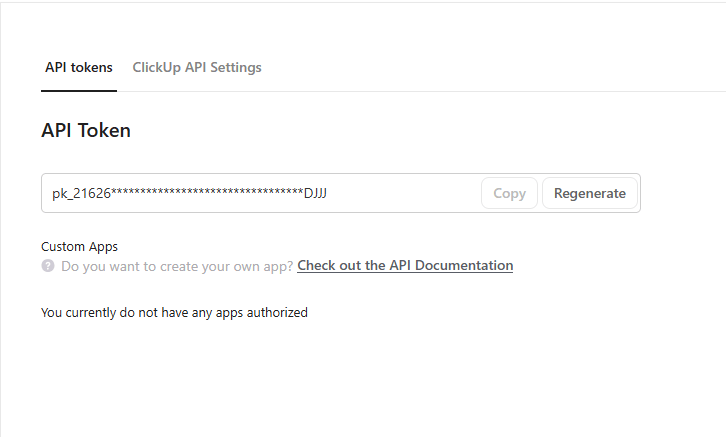
- Click on your profile Workspace > Settings > ClickUp API > API Token.
- Copy the API Token and paste it inside the Essential Addons for Contact Form 7 ClickUp Token input field.
Configure ClickUp Additional Settings
Before collecting & storing necessary information through Contact Form 7 to ClickUp, configuring additional settings is mandatory. Otherwise, the functionality won’t work as expected.
Follow the guidelines below to configure the settings properly.
- Navigate to Contact Forms to create a new form or edit an existing one.
- Enter Form Name, customize Form Template, and others.
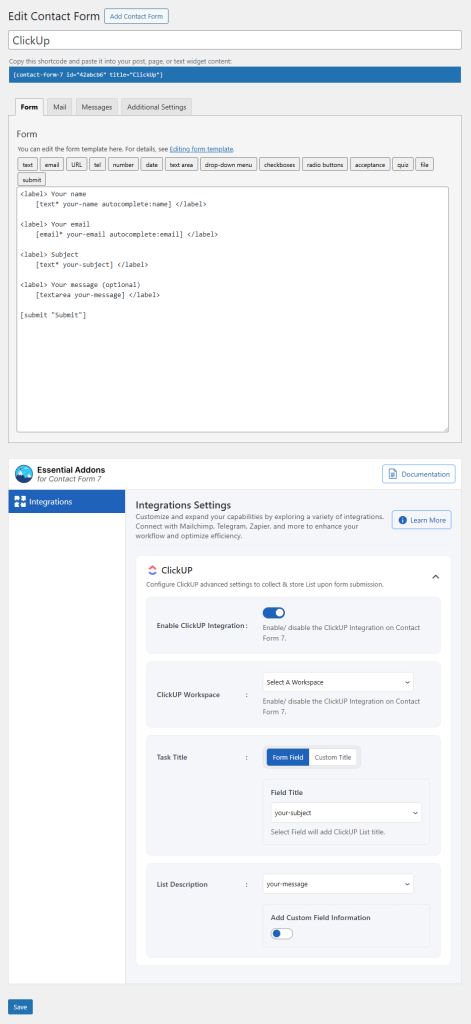
- Navigate to Integrations from Essential Addons for Contact Form 7 settings > ClickUp > Enable ClickUp Integration if it’s disabled.
- Add necessary fields in the form editing panel regarding ClickUp.
- Enable ClickUp Integration: Enable/ disable the ClickUp Integration on Contact Form 7.
- ClickUp Workspace: Select the ClickUp workspace.
- Task Title: Select the ClickUp Task title field to capture.
- List Description: Select the ClickUp List description field to capture.
Output