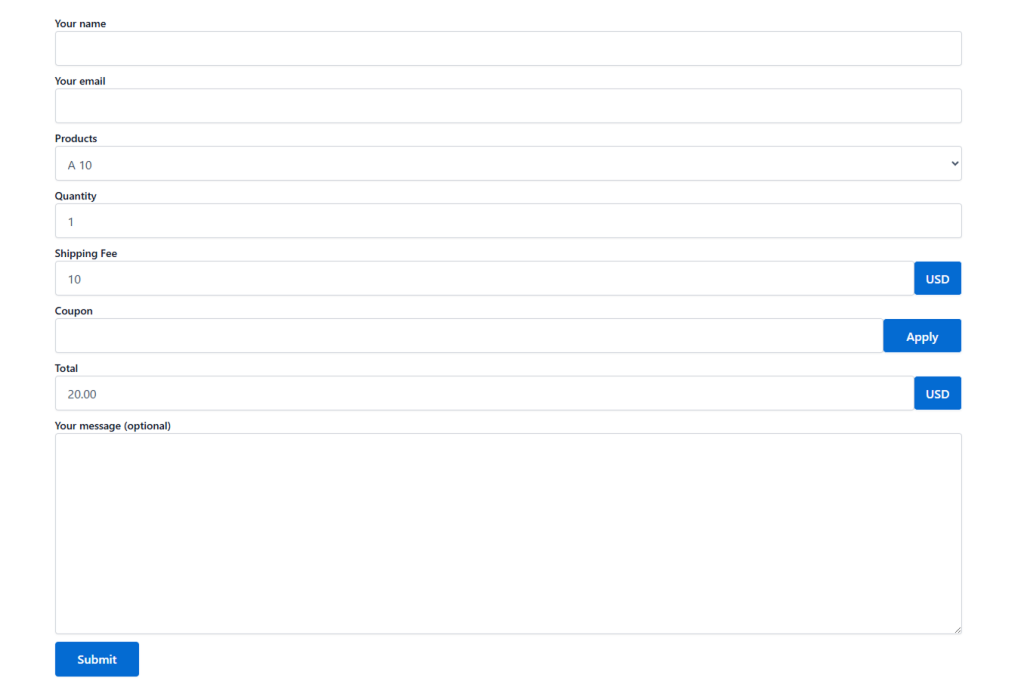
Imagine receiving form payments instantly through PayPal, no redirects, no hassle. With the PayPal Integration in Essential Addons for Contact Form 7, it’s now easier than ever!
Once a user submits a form, their payment is automatically processed through your connected PayPal account. It’s a seamless, secure way to collect payments and keep your workflow smooth.
To integrate PayPal with your Contact Form 7 and start automating payment collection, follow the steps below.
Make sure you have installed both Contact Form 7 & Essential Addons Contact Form 7 plugins inside your WordPress.
Enable PayPal Integration
Before connecting your PayPal account with Contact Form 7, you need to enable PayPal integration. Follow the steps below to get started:
- Navigate to the Contact Form 7 menu.
- Go to Essential Addons.
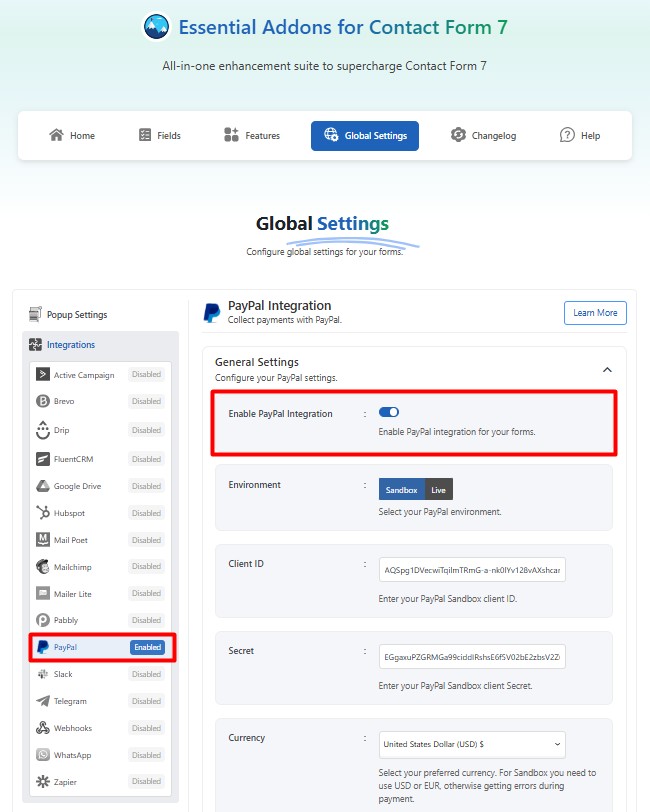
- Click the Global Settings tab > Integrations > PayPal.
Enable PayPal Integration.
Configure General PayPal Settings
Once you activate the PayPal Integration toggle, you’ll see the General Settings option. This is where you configure your PayPal payment environment and provide the necessary credentials to connect your account. Here’s what each field means:
- Environment: Choose between Sandbox (for testing) or Live (for real transactions).
- Client ID: Enter your PayPal Client ID, which you can find in your PayPal Developer Dashboard.
- Secret: Enter your PayPal Client Secret that corresponds to your Client ID.
- Currency: Select your preferred currency for transactions.
Make sure all the details are entered correctly before saving your settings. Incorrect credentials or mismatched environments may cause payment failures.
Add Coupon Codes to Your PayPal Payment Form
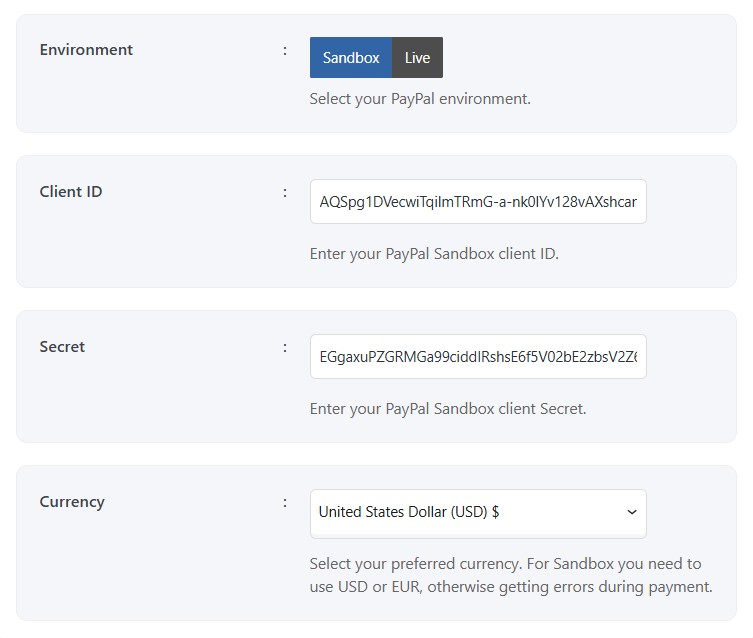
To offer discounts or promotional deals, you can easily add a coupon code to your PayPal payment form.
In the Coupon Settings section, you can:
- Create new coupons by clicking the “Add New Coupon” button.
- Edit or delete existing coupons using the action buttons.
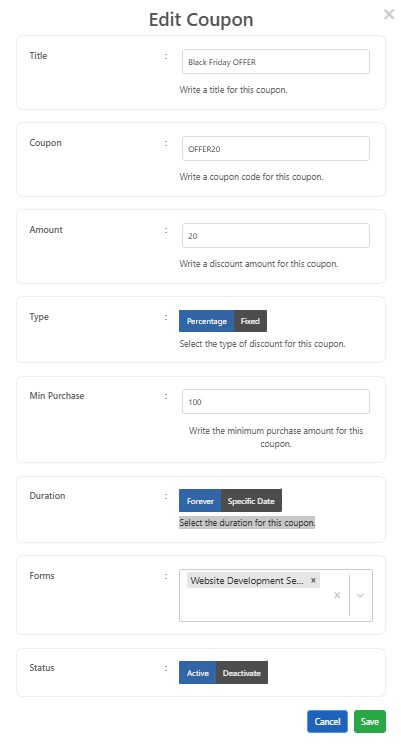
Edit Coupon
The Edit Coupon section allows you to create or update discount coupons for your website. Follow the steps below to fill in all required information correctly.
- Title: Enter a title for your coupon.
- Coupon: Write a coupon code for this coupon. Title: Enter a title for your coupon.
- Amount: Enter the discount value you want to offer.
- Type: Select the type of discount for this coupon (Percentage or Fixed).
- Minimum Purchase: Write the minimum purchase amount for this coupon.
- Duration: Select the duration for this coupon.
- Forms: Select the forms or services where this coupon will be applied.
- Status: Set the coupon as Active or Deactivate depending on whether you want it available to users.
- After filling in all the details, click Save to apply the changes or Cancel to discard them.
Add PayPal Payment Form
To set up a PayPal payment form in your contact form, follow the steps below:
- Navigate to any existing form or create a new one.
- Add the Payment Item, Quantity, Coupon, Shipping Fee, and Total tags where you want them to appear in your form.

Configure PayPal Payment Item Field
After selecting the “Payment Item” tag, a new pop-up window will appear. Here you can configure and customize your PayPal payment item settings.
- Field Type: Choose Payment Item from the dropdown. Tick the checkbox if you want to make this field required.
- Field Name: This is usually auto-generated, but you can enter a custom name if needed.
- Type: Select how you want to display the product options.
- Items: Enter each product or service
- Class Attribute: Add a custom class if you want to style the field using CSS.
- ID Attribute: Add a custom ID if you need to target this field specifically.
Click the Insert Tag button once the configuration is done.
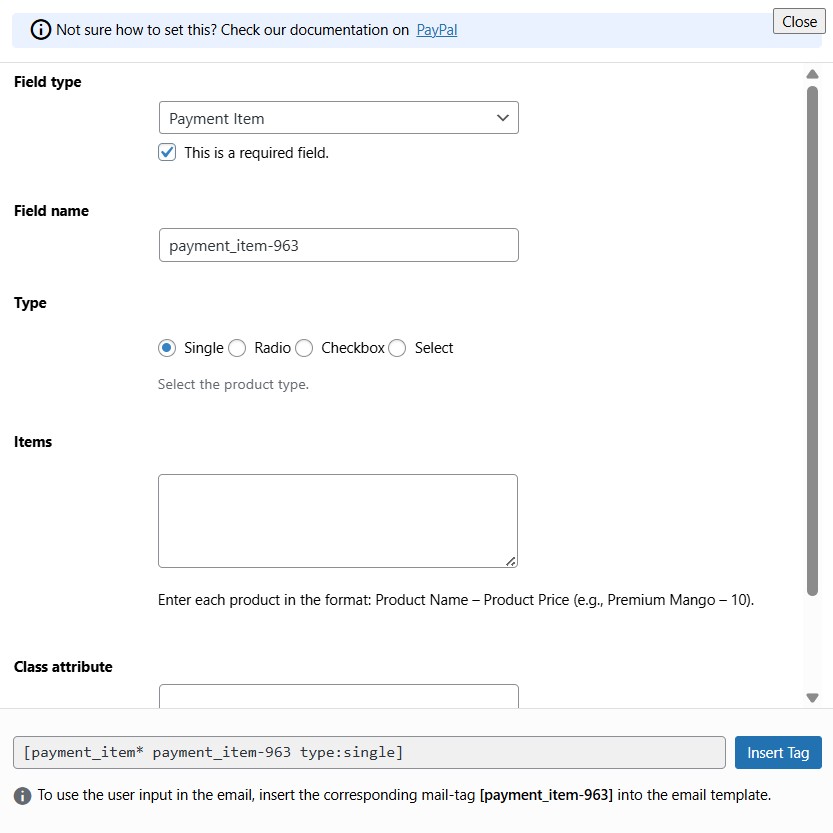
- Like that, you can also add Quantity, Coupon, Shipping Fee, and Total tags to manage item count, apply discounts, include delivery charges, and calculate the final amount.
- The customized tag will be added to your form editing panel.
- Save Changes.

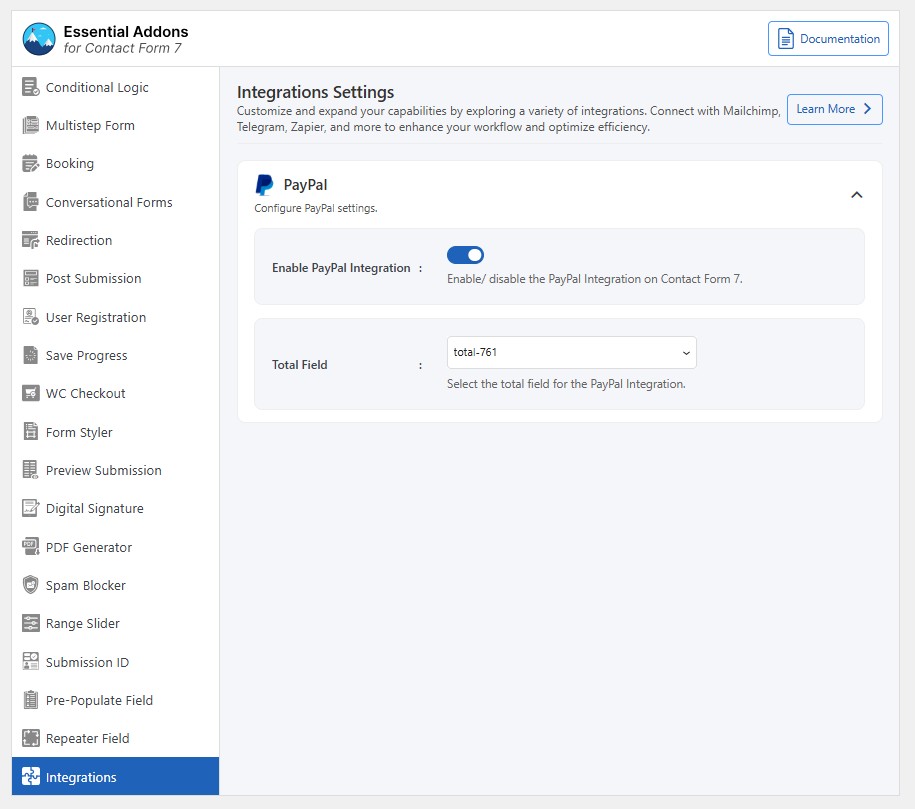
PayPal Additional Settings
To configure & customize additional settings for the PayPal Integration Form, follow the guidelines below:
- Enable PayPal Integration: Enable/ disable the booking/appointment on Contact Form 7.
- Total Field: Select the total field for the PayPal Integration.
Embed the Shortcode
- Copy & Paste the shortcode inside your page or post to display the form.

Output