The Discord Integration in the Essential Addons for Contact Form 7 plugin allows you to send instant notifications to your Discord server whenever a Contact Form 7 submission is received.
This integration helps you stay informed in real time by delivering form entries—such as inquiries, feedback, or support requests—directly to a designated Discord channel.
By connecting Contact Form 7 with Discord, you can improve team communication, respond faster to new submissions, and keep everyone updated without constantly checking the WordPress dashboard.
Before you start: Make sure Contact Form 7 and Essential Addons for Contact Form 7 (PRO) are installed on your WordPress site.
Enable Discord Integration
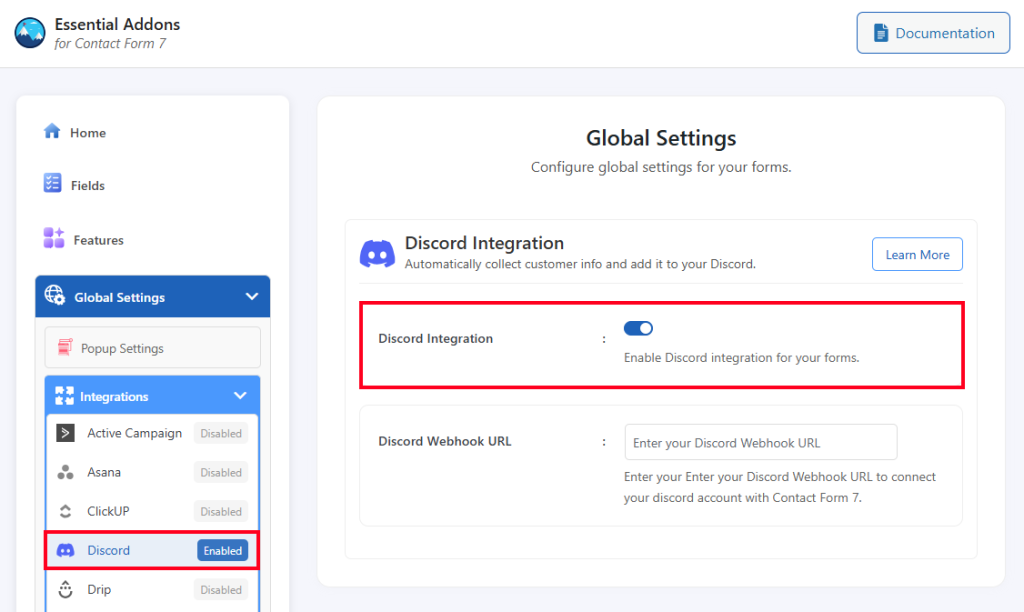
Before connecting your Discord with Contact Form 7, you need to enable Discord integration. Follow the steps below to get started:
- Navigate to the Contact Form 7 menu.
- Go to Essential Addons.
- Click the Global Settings tab > Integrations > Discord > Enable Discord Integration.
How to Get Discord Webhook URL?
To get the Discord Webhook URL, follow the steps below:
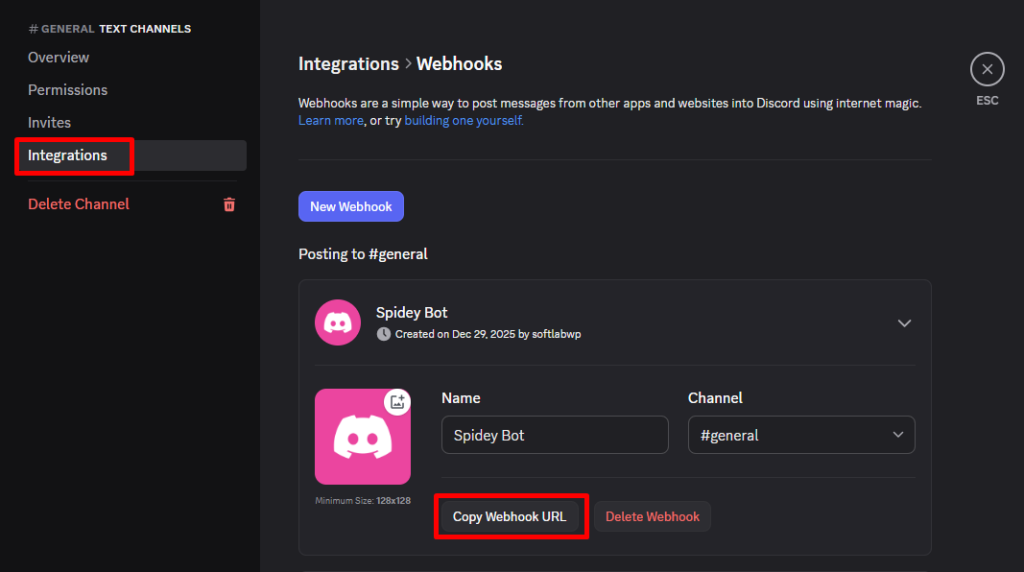
- Log in to your Discord account > Create a new server > navigate to Server Settings.
- Click on Integrations > Create Webhook > click on the created webhook > Copy Webhook URL and paste it inside the Essential Addons for Contact Form 7 Discord Webhook URL input field.
Configure Discord Additional Settings
Before collecting & storing necessary information through Contact Form 7 to Discord, configuring additional settings is mandatory. Otherwise, the functionality won’t work as expected.
Follow the guidelines below to configure the settings properly.
- Navigate to Contact Forms to create a new form or edit an existing one.
- Enter Form Name, customize Form Template, and others.
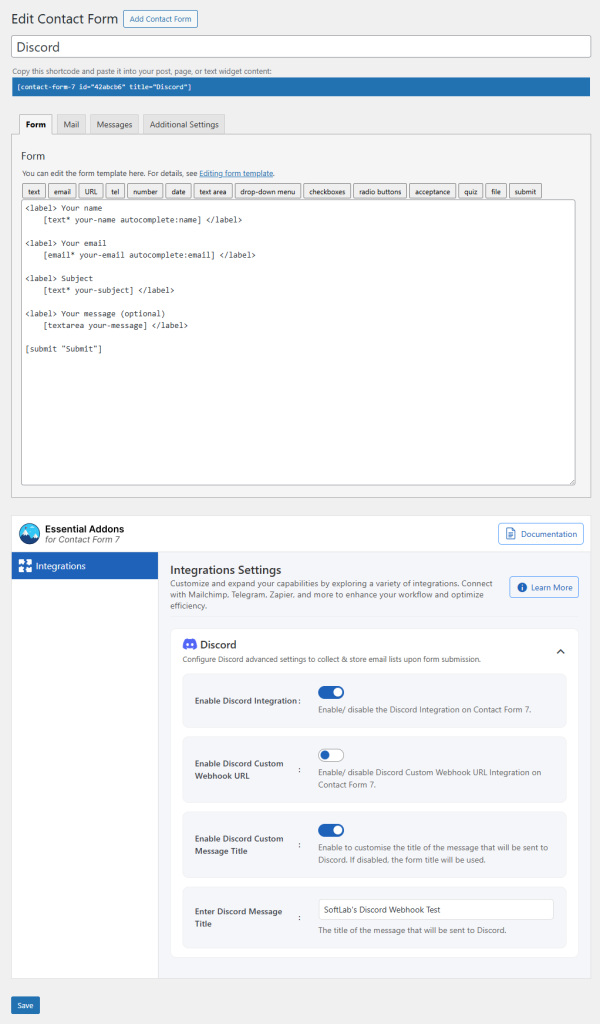
- Navigate to Integrations from Essential Addons for Contact Form 7 settings > Discord > Enable Discord Integration if it’s disabled.
- Add necessary fields in the form editing panel regarding Discord.
- Enable Discord Integration: Enable/ disable the Discord Integration on Contact Form 7.
- Enable Discord Custom Webhook URL: Enable/ disable Discord Custom Webhook URL Integration on Contact Form 7.
- Enter Discord Custom Webhook URL: Enter your Discord Custom Webhook URL to connect your Slack account with Contact Form 7.
- Enable Discord Custom Message Title: Enable to customise the title of the message that will be sent to Discord. If disabled, the form title will be used.
- Enter Discord Message Title: The title of the message that will be sent to Discord.
Output
