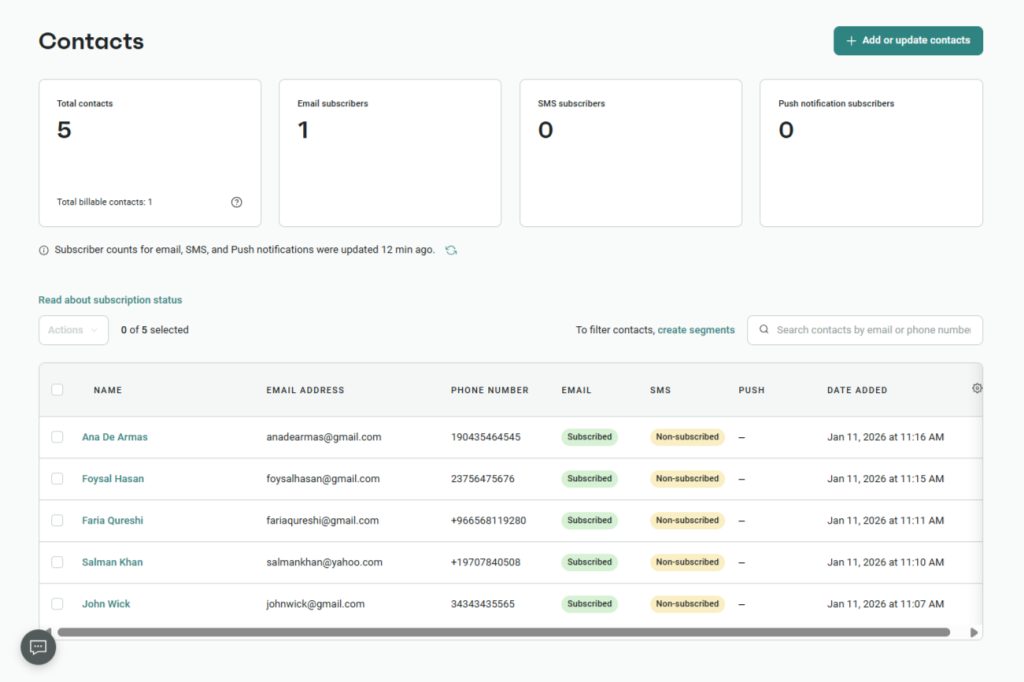
Managing and growing your email list has never been easier. With the Omnisend Integration in Essential Addons for Contact Form 7, every form submission is instantly added to your Omnisend audience – no copying, pasting, or manual imports required.
As soon as someone submits a form, their information is automatically synced with your connected Omnisend account. This seamless, automated workflow helps you grow your subscriber list faster, keep your contacts organized, and power your email and SMS campaigns with fresh, accurate data.
Follow the steps below to connect Omnisend with your Contact Form 7 forms and streamline your subscriber management effortlessly.
Before you begin, ensure both Contact Form 7 and Essential Addons for Contact Form 7 (PRO) are installed on your WordPress site.
Enable Omnisend Integration
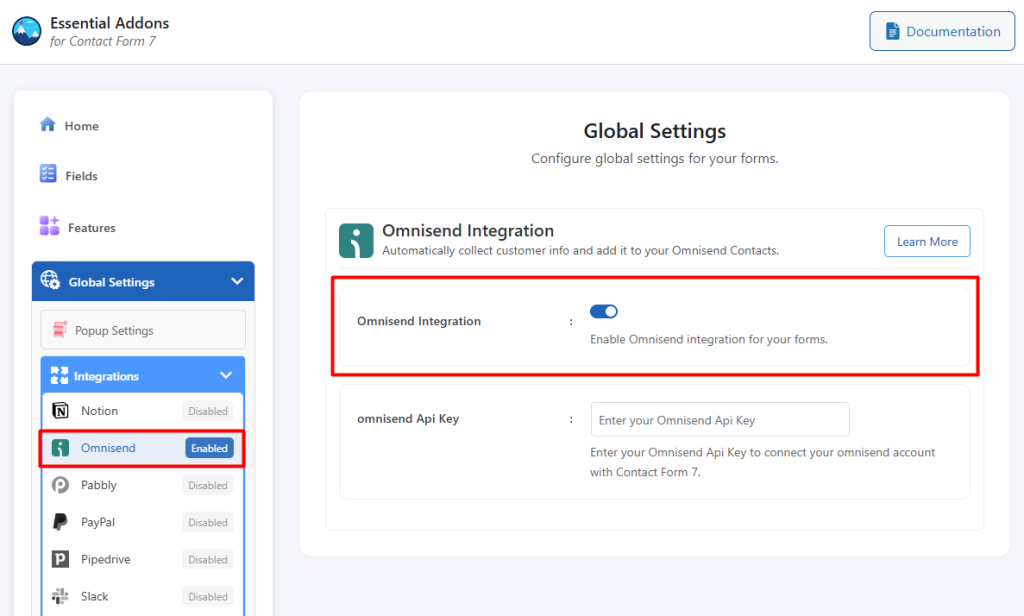
Before connecting your Omnisend account with Contact Form 7, you need to enable the Omnisend integration.
Follow the steps below to get started:
- Navigate to the Contact Form 7 menu.
- Go to Essential Addons.
- Click the Global Settings tab > Integrations > Omnisend > Enable Omnisend Integration.
Configure Omnisend Settings
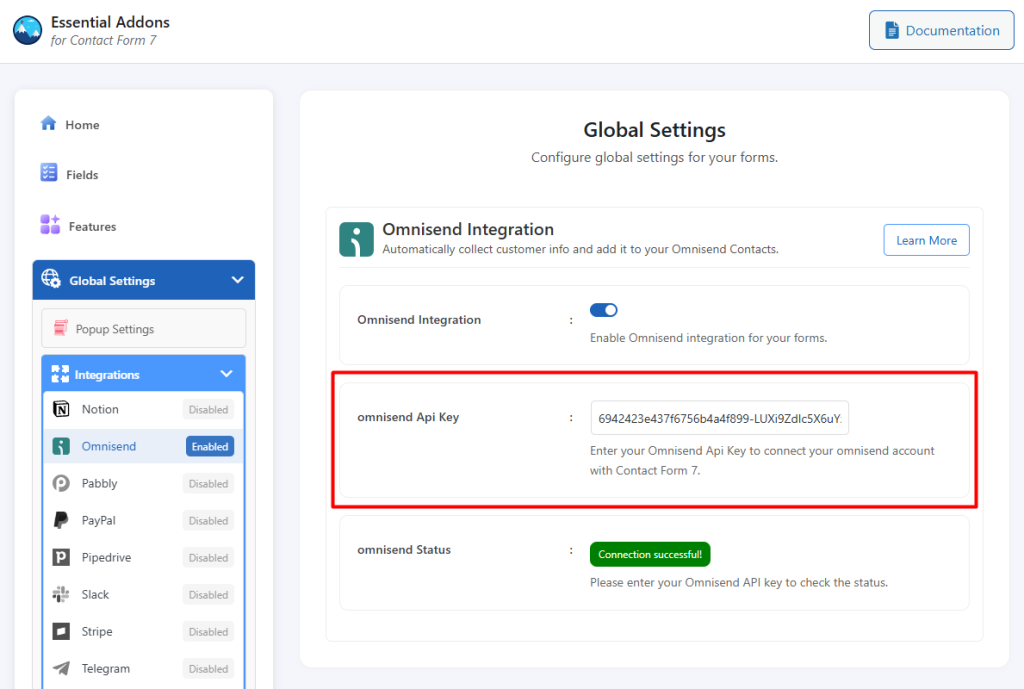
Once you activate the Omnisend integration toggle, you’ll see a few additional options. This is where you configure your Omnisend settings and enter the necessary credentials to connect your account.
Here’s what each field means:
- Omnisend API Key: An Omnisend API key is a unique authentication token that allows external apps to securely access and interact with your Omnisend account. Enter your Omnisend API key to connect your Omnisend account with Contact Form 7.
How to Access the Omnisend API?
To access the Omnisend API and other credentials, follow the steps below:
- Log in to your Omnisend Account.
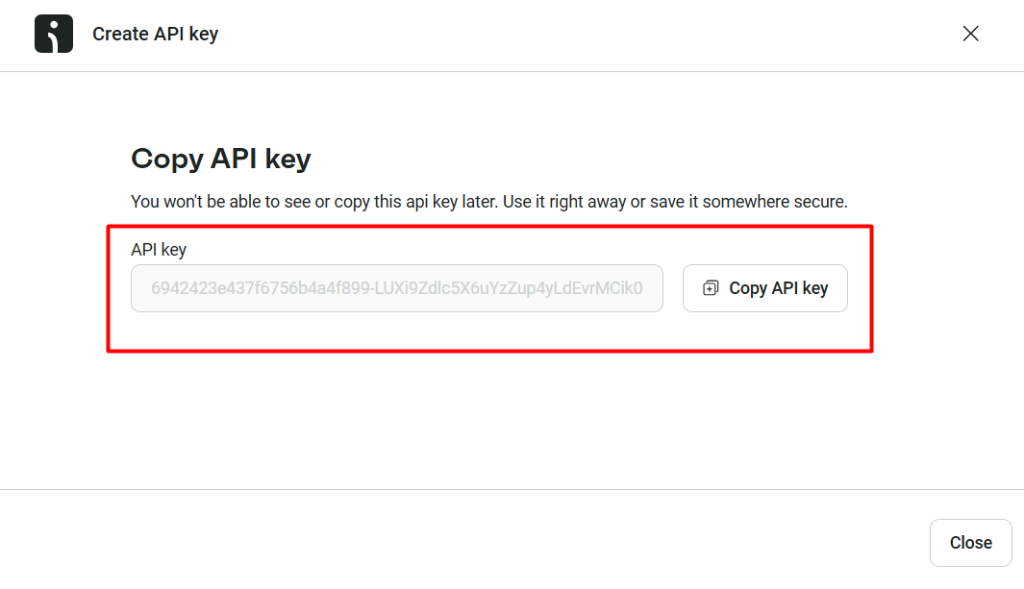
- Navigate to Store Settings > API > Create API Key > Enter API Key Name > Click Create API Key.
- Here you will be able to copy the Omnisend API.
Configure Omnisend Additional Settings
Before collecting and storing subscriber information from Contact Form 7 in Omnisend, configuring the required additional settings is mandatory. Without these settings, the integration will not function correctly.
Follow the guidelines below to configure the settings properly.
- Navigate to Contact Forms to create a new form or edit an existing one.
- Enter Form Name, customize Form Template, and others.
- Navigate to Integrations from Essential Addons for Contact Form 7 settings > Omnisend > Enable Omnisend Integration if it’s disabled.
- Email: Select the correct form tag to capture the subscriber’s email address.
- First Name: Select the correct form tag to capture the subscriber’s first name.
- Last Name: Select the correct form tag to capture the subscriber’s last name.
- Phone Number: Select the correct form tag to capture the subscriber’s phone number.
- Save Changes once the configuration is complete.

Upon submitting the form, the selected information will be automatically stored in your Omnisend account directly from Contact Form 7.
Output