Imagine capturing valuable customer details the moment a form is submitted—no manual exporting, no extra steps. With the HubSpot Integration in Essential Addons for Contact Form 7, you can automatically sync contact data to your HubSpot CRM in just seconds!
Once a user submits a form, their information is instantly sent to your connected HubSpot account. It’s a seamless, automated way to grow your contact list, organize leads, and keep your CRM workflow running smoothly.
To integrate HubSpot with your Contact Form 7 forms and start automating your contact collection, follow the steps below.
Make sure you have installed both Contact Form 7 and the Essential Addons for Contact Form 7 (PRO) plugins inside your WordPress site.
Enable HubSpot Integration
Before connecting your HubSpot account with Contact Form 7, you need to enable HubSpot integration. Follow the steps below to get started:
- Navigate to the Contact Form 7 menu.
- Go to Essential Addons.
- Click the Global Settings tab > Integrations > HubSpot > Enable HubSpot Integration.

Configure HubSpot Settings
Once you activate the HubSpot Integration toggle, you’ll discover a few other options. This is where you configure your HubSpot environment and provide the necessary credentials to connect your account.
Here’s what each field means:
- HubSpot Token: Enter your HubSpot Token to connect your HubSpot account with Contact Form 7.
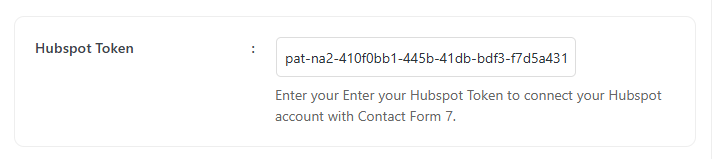
How to Get a HubSpot Token?
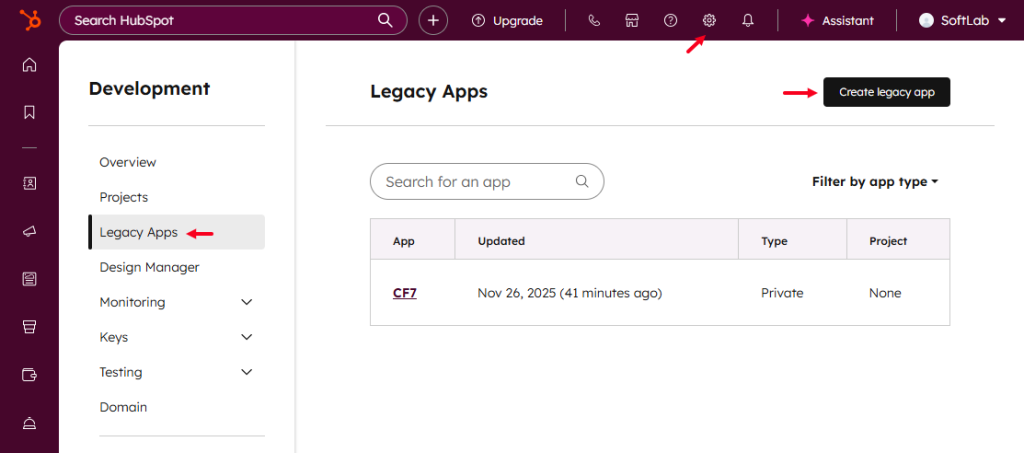
To access the HubSpot Token and other credentials, follow the steps below:
- Log in to your HubSpot account
- Navigate to Settings > Integrations > Legacy App.
- Click on Create Legacy App > Choose Private.
- Enter App Name, Logo, and Description.
- Add necessary Scopes, and set Webhooks (if required) > Click the Create App button.
Configure HubSpot Additional Settings
Before collecting & storing necessary information through Contact Form 7 to HubSpot, configuring additional settings is mandatory. Otherwise, the functionality won’t work as expected.
Follow the guidelines below to configure the settings properly.
- Navigate to Contact Forms to create a new form or edit an existing one.
- Enter Form Name, customize Form Template, and others.
- Navigate to Integrations from Essential Addons for Contact Form 7 settings > HubSpot > Enable HubSpot Integration if it’s disabled.
- Subscriber Email: Select the correct tag to capture the subscriber email while submitting the form.
- Subscriber First Name: Select the correct tag to capture the First Name while submitting the form.
- Subscriber Last Name: Select the correct tag to capture the Last Name while submitting the form.
- Subscriber Phone Number: Select the correct tag to capture the Phone Number while submitting the form.
- Save Changes while configuration is done.

Upon submitting the form, the necessary and selected information will be stored directly in the HubSpot account from Contact Form 7.
Output
