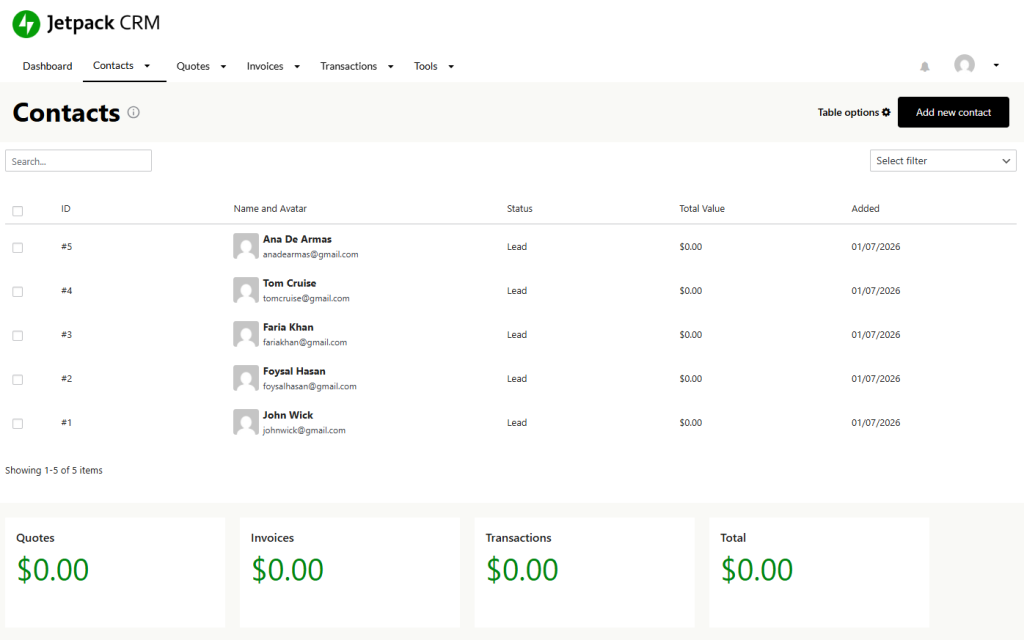
Managing your customer contacts should be effortless and fully automated. With the Jetpack CRM integration, every form submission or customer interaction is instantly captured and synced, eliminating manual data entry and unnecessary setup.
As soon as a user submits a form or reaches out, their details are automatically added to your Jetpack CRM contact list, complete with relevant activity records. This seamless, hands-free process helps you keep your customer database organized, track interactions accurately, and build stronger relationships using real-time, reliable data.
Follow the steps below to connect Jetpack CRM with your forms and ensure every submission is recorded as a valuable contact in your CRM system.
Before you begin, ensure Contact Form 7, Essential Addons for Contact Form 7 (PRO), and Jetpack CRM plugins are installed on your WordPress site.
Enable Jetpack CRM Integration
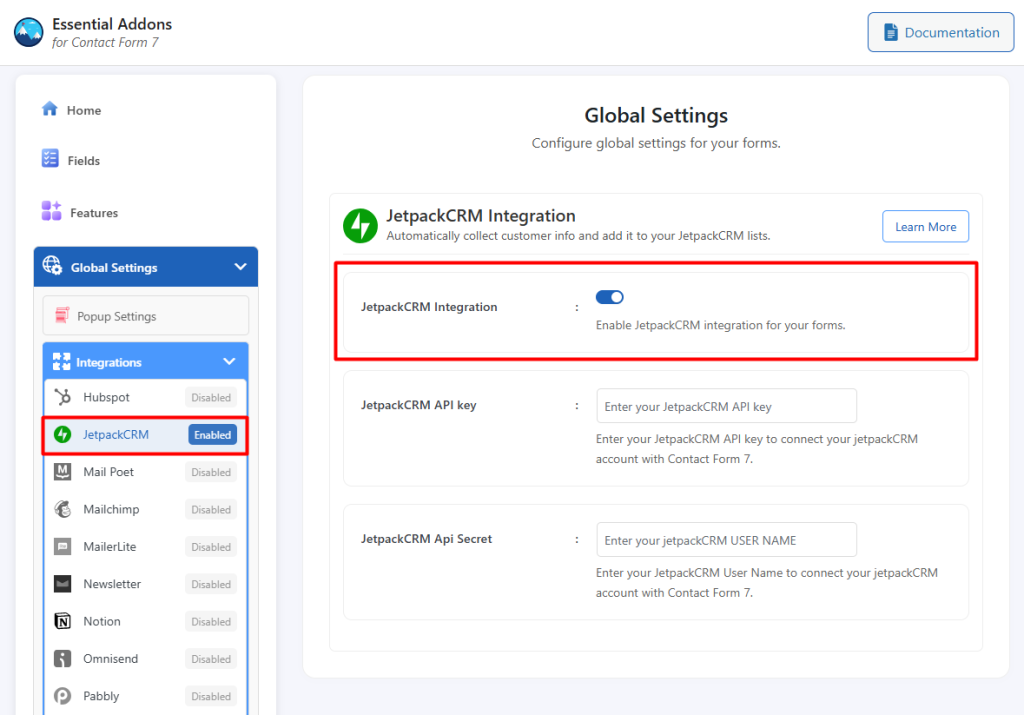
Before connecting Jetpack CRM with your forms, you need to enable the Jetpack CRM integration.
Follow the steps below to get started:
- Navigate to the Contact Form 7 menu.
- Go to Essential Addons.
- Click the Global Settings tab > Integrations > Jetpack CRM > Enable the Jetpack CRM Integration.
Configure Jetpack CRM Settings
Once you activate the Jetpack CRM Integration toggle, you’ll see a few additional options. This is where you configure your Jetpack CRM settings and enter the necessary credentials to connect your account.
Here’s what each field means:
- Jetpack CRM API Key: A Jetpack CRM API key is a unique authentication token that allows external applications to securely access and interact with your Jetpack CRM account. Enter your Jetpack CRM API key to connect Jetpack CRM with Contact Form 7.
- Jetpack CRM API Secret: A JetpackCRM API Secret is a confidential authentication credential used together with your API Key to securely verify and authorize access to your Jetpack CRM account. Enter your JetpackCRM API Secret to complete the connection and ensure secure communication with integrated applications.

How to Access the Jetpack CRM API?
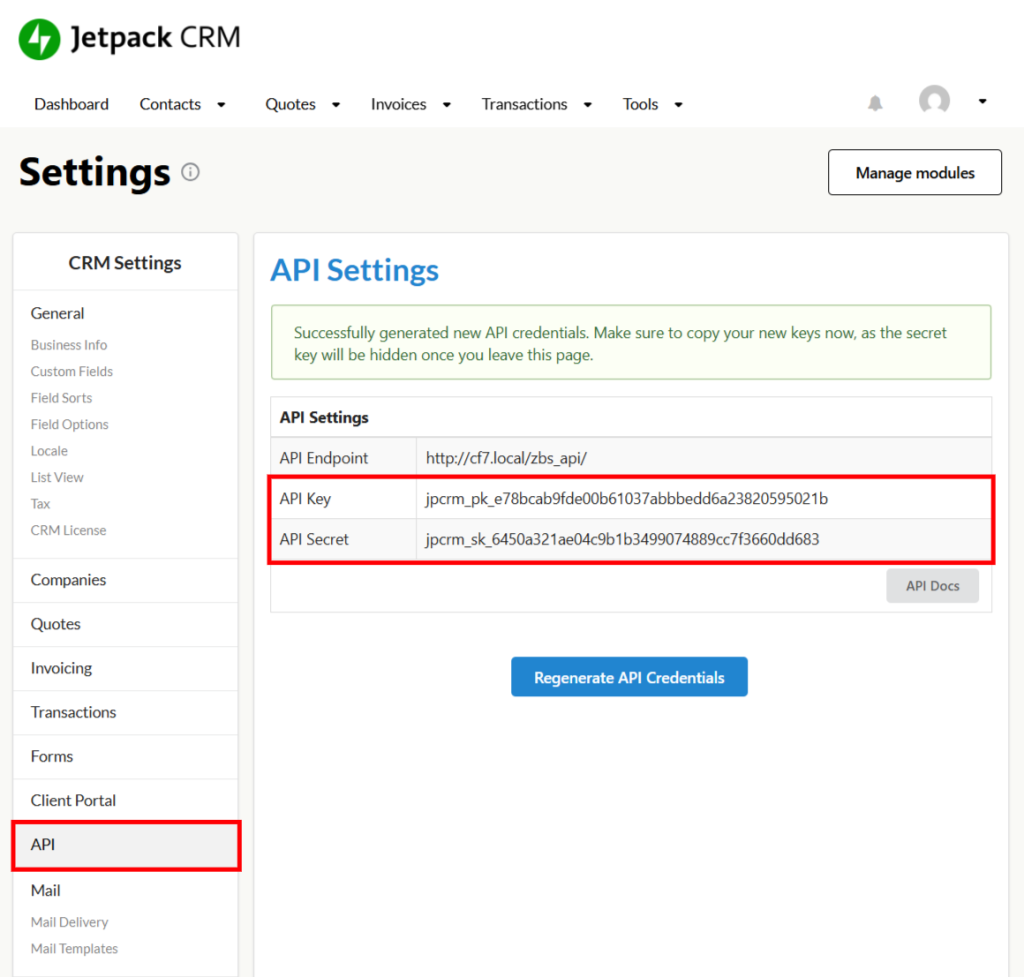
To access the Jetpack CRM API Key & API Secret, follow the steps below:
- Navigate to Jetpack CRM Plugin > CRM Settings > API > Click Generate API Key.
- Here you will be able to copy the Jetpack CRM API Key & API Secret.
P.S. If the API option is not visible on CRM Settings, navigate to the Jetpack CRM Header Menu > Tools > Core Modules and activate the API Module.
Configure Jetpack CRM Additional Settings
Before collecting and storing contact information from Contact Form 7 in Jetpack CRM, configuring the additional settings is required. Without completing these settings, the integration will not function properly.
Follow the guidelines below to configure the settings properly.
- Navigate to Contact Forms to create a new form or edit an existing one.
- Enter Form Name, customize Form Template, and others.
- Navigate to Integrations from Essential Addons for Contact Form 7 settings > Jetpack CRM > Enable Jetpack CRM Integration if it’s disabled.
- Email: Select the correct form tag to capture the subscriber’s email address.
- First Name: Select the correct form tag to capture the subscriber’s first name.
- Last Name: Select the correct form tag to capture the subscriber’s last name.
- Phone Number: Select the correct form tag to capture the subscriber’s Phone Number.
- Save Changes once the configuration is complete.

Upon submitting the form, the selected information will be automatically stored in your Jetpack CRM directly from Contact Form 7.
Output