Managing your email list should be simple and automatic. With the MailPoet Integration in Essential Addons for Contact Form 7, every form submission is instantly added to your MailPoet subscribers—no manual importing or data entry required.
As soon as someone submits a form, their information is automatically synced to your selected MailPoet list. This seamless workflow helps you grow your audience, organize subscribers, and keep your email newsletters powered with up-to-date contact data.
Follow the steps below to connect MailPoet with your Contact Form 7 forms and streamline your subscriber collection process.
Before you begin, ensure Contact Form 7, Essential Addons for Contact Form 7 (PRO), and MailPoet plugins are installed on your WordPress site.
Enable MailPoet Integration
Before connecting your MailPoet account with Contact Form 7, you need to enable MailPoet integration. Follow the steps below to get started:
- Navigate to the Contact Form 7 menu.
- Go to Essential Addons.
- Click the Global Settings tab > Integrations > MailPoet > Enable MailPoet Integration.

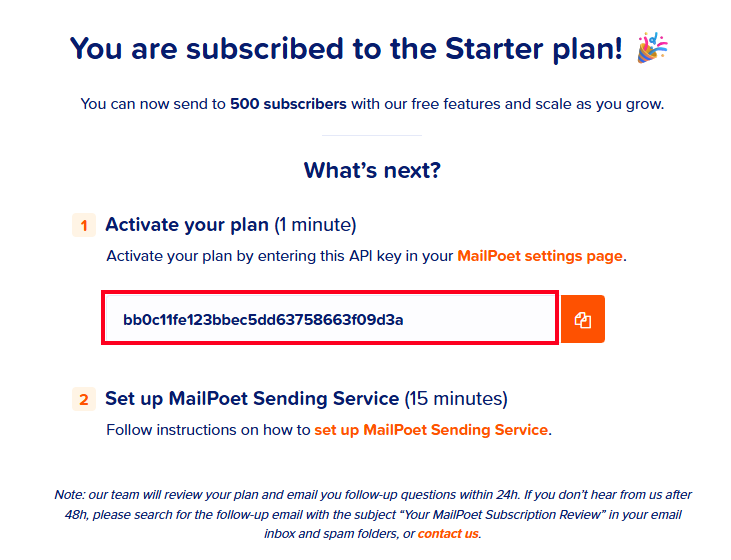
How to get the MailPoet Activation key?
To access the MailPoet activation key, follow the steps below:
- Log in to your MailPoet account.
- Set up the MailPoet account in 3 steps.
- Copy the activation key from the 3rd step.
- Paste inside the MailPoet plugin to activate the account.
Configure MailPoet Additional Settings
Before collecting & storing necessary information through Contact Form 7 to MailPoet, configuring additional settings is mandatory. Otherwise, the functionality won’t work as expected.
Follow the guidelines below to properly configure the settings.
- Navigate to Contact Forms to create a new form or edit an existing one.
- Enter Form Name, customize Form Template, and others.
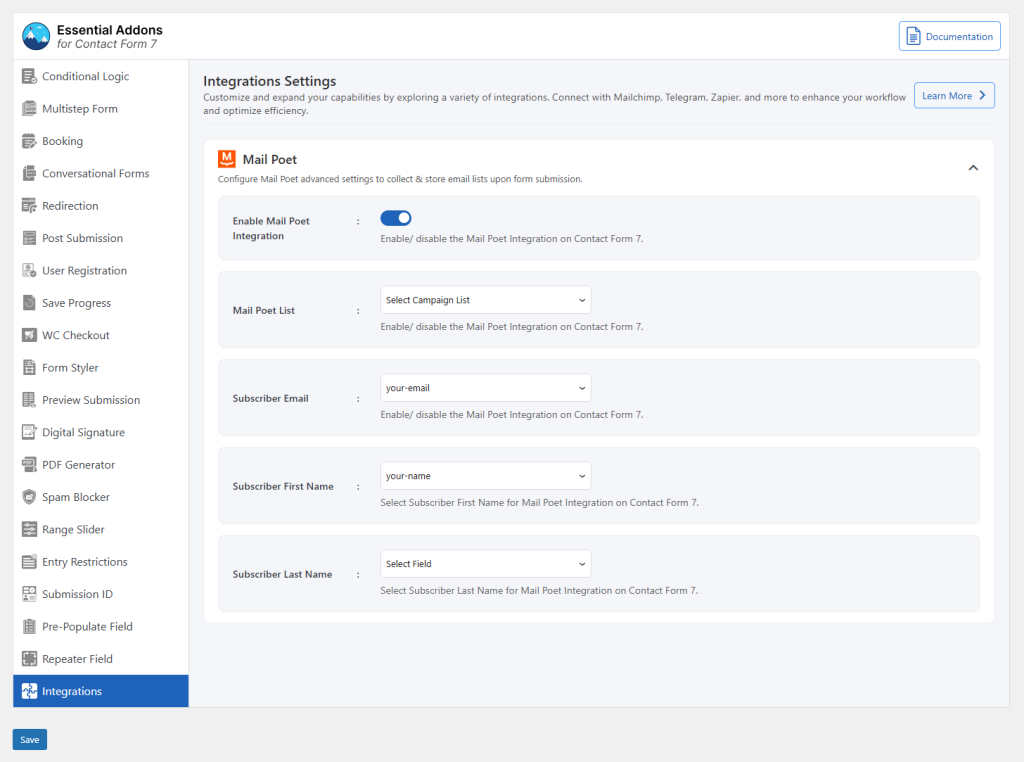
- Navigate to Integrations from Essential Addons for Contact Form 7 settings > MailPoet > Enable MailPoet Integration if it’s disabled.
- MailPoet List: Select the campaign list where submitted data will be stored.
- Subscriber Email: Select the correct tag to capture the subscriber email while submitting the form.
- Subscriber First Name: Select the correct tag to capture the First Name while submitting the form.
- Subscriber Last Name: Select the correct tag to capture the Last Name while submitting the form.
- Save Changes while configuration is done.
Upon submitting the form, the necessary and selected information will start storing inside the MailPoet plugin directly from Contact Form 7.
Output
