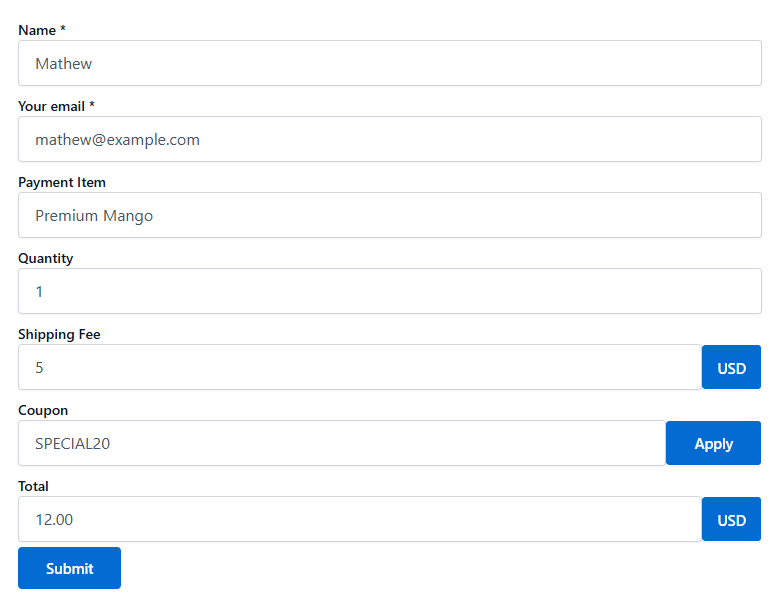
Automatically collect payments with Stripe. With the Stripe Integration in Essential Addons for Contact Form 7, every form submission can trigger a secure payment—no extra setup or manual processing required.
As soon as a user submits a form, their payment and details are processed through Stripe in real time, helping you streamline transactions, reduce friction, and stay organized.
Before you start: Make sure Contact Form 7 and Essential Addons for Contact Form 7 (PRO) are installed on your WordPress site.
Enable Stripe Integration
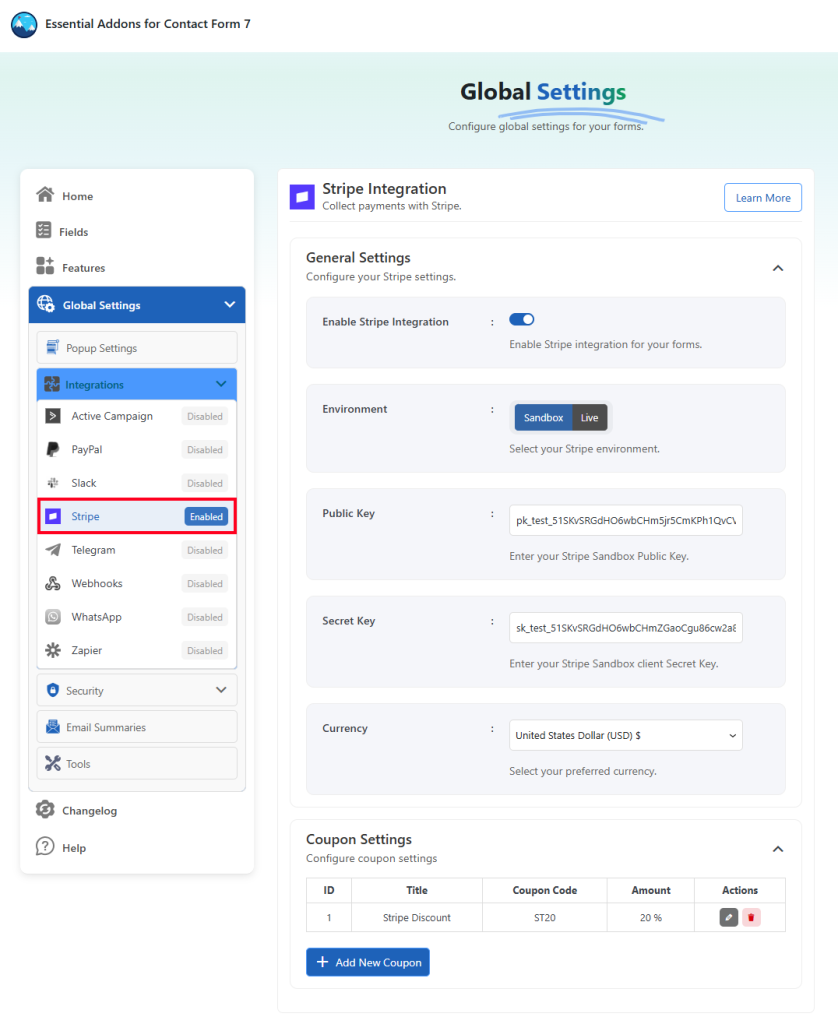
Before connecting your Stripe account with Contact Form 7, you need to enable Stripe integration. Follow the steps below to get started:
- Navigate to the Contact Form 7 menu.
- Go to Essential Addons.
- Click the Global Settings tab > Integrations > Stripe > Enable Stripe Integration.

Configure Stripe Settings
Once you activate the Stripe Integration toggle, you’ll discover a few other options. This is where you configure your Stripe environment and provide the necessary credentials to connect your account.
Here’s what each field means:
- Environment: Select your Stripe environment, Sandbox or Live.
- Public Key: Enter your Stripe Sandbox or Live Public Key.
- Secret Key: Enter your Stripe Sandbox or Live client Secret Key.
- Currency: Select your preferred currency.
- Coupon Settings: Configure coupon settings for Stripe.
- Title: Write a title for the coupon.
- Coupon: Write a coupon code for the coupon.
- Amount: Write a discount amount for the coupon.
- Type: Select the discount type for the coupon: Percentage or Fixed.
- Min Purchase: Write the minimum purchase amount for the coupon.
- Duration: Select the duration for this coupon: Forever or Specific Date.
- Forms: Select the Form for Stripe.
- Status: Select the status for the coupon.
How to Get Stripe Public Key & Secret Key?
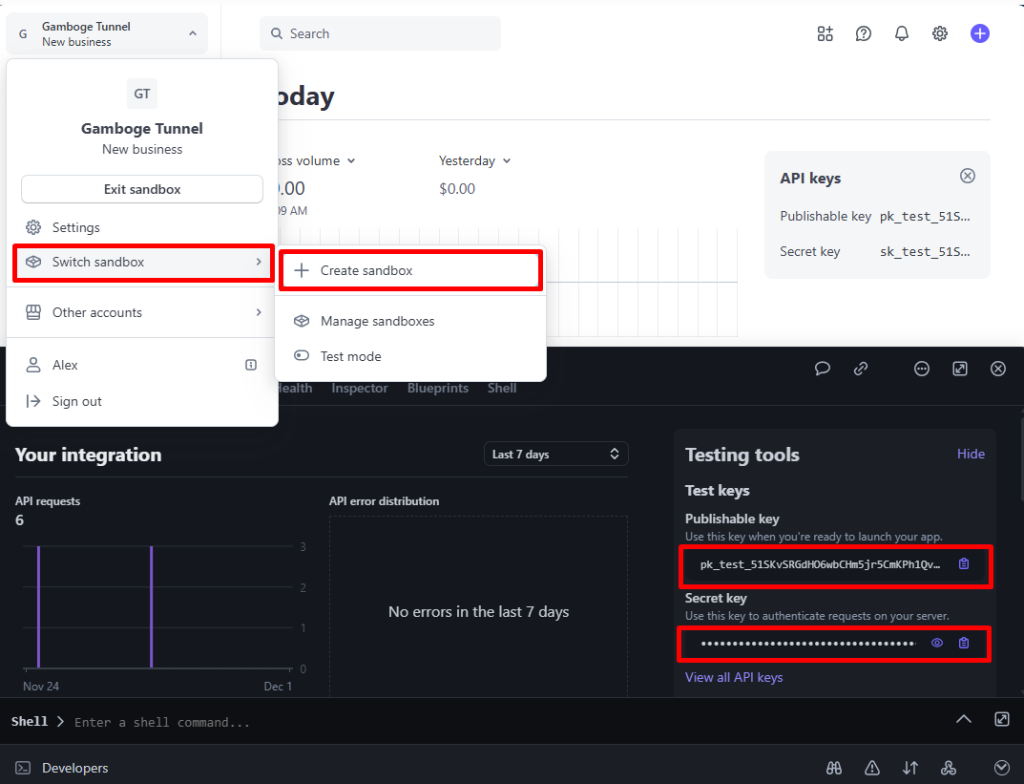
To get the Stripe public key & secret key, follow the steps below:
- Log in to your Stripe account.
- Click on your profile menu > Switch Sandbox > Create Sandbox (if you don’t have any).
- Open the workbench from the footer > Copy Public Key & Secret Key to set up.
Configure Stripe Additional Settings
Before collecting & storing necessary information through Contact Form 7 to Stripe, configuring additional settings is mandatory. Otherwise, the functionality won’t work as expected.
Follow the guidelines below to configure the settings properly.
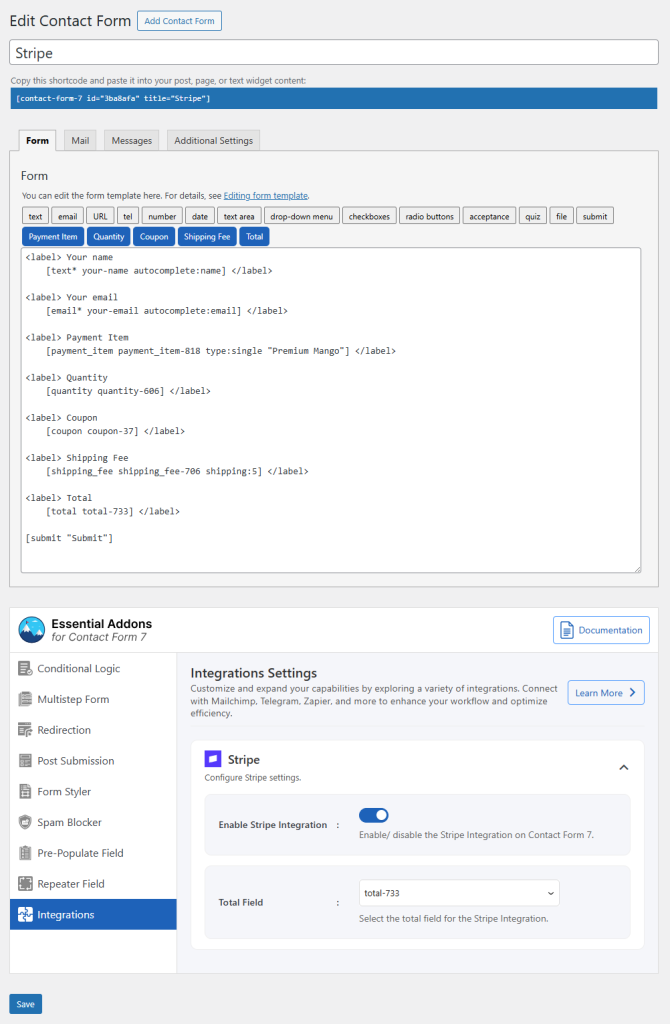
- Navigate to Contact Forms to create a new form or edit an existing one.
- Enter Form Name, customize Form Template, and others.
- Navigate to Integrations from Essential Addons for Contact Form 7 settings > Stripe > Enable Stripe Integration if it’s disabled.
- Add necessary fields in the form editing panel regarding Stripe.
- Enable Stripe Integration: Enable/ disable the Stripe Integration on Contact Form 7.
- Total Field: Select the total field for the Stripe Integration.
Output